
Calendar
Manage your schedules and tasks in Aino LifeOS. Switch to calendar view from the top navigation.
Switch Views
Switch between day, week, month, Task, Schedule, and Quadrant at the top. Open the task workspace to manage to-dos; List, Timeline, and Board are available inside that workspace.
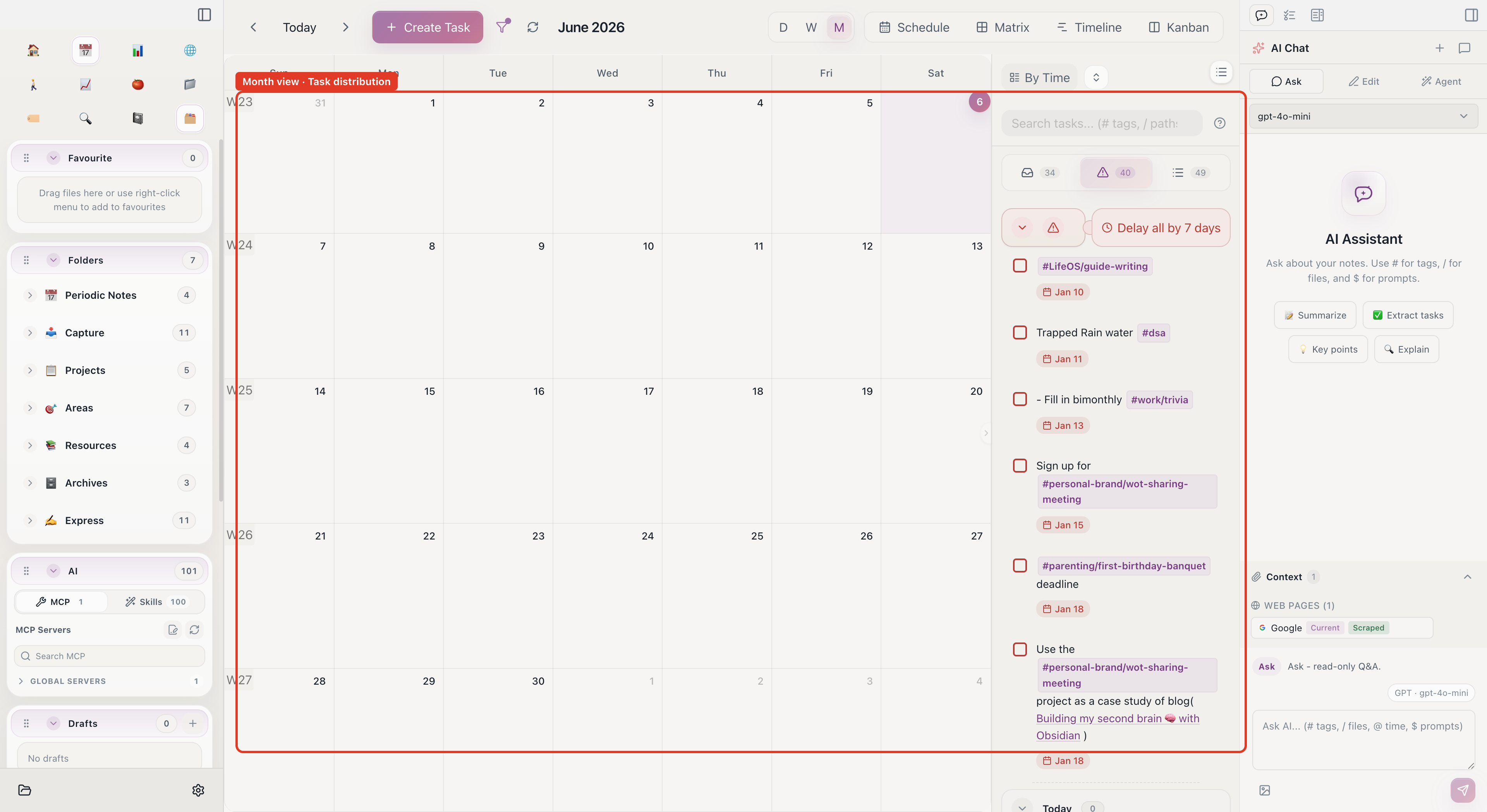
Month View
See all events across the month. Good for viewing the whole month's arrangement.
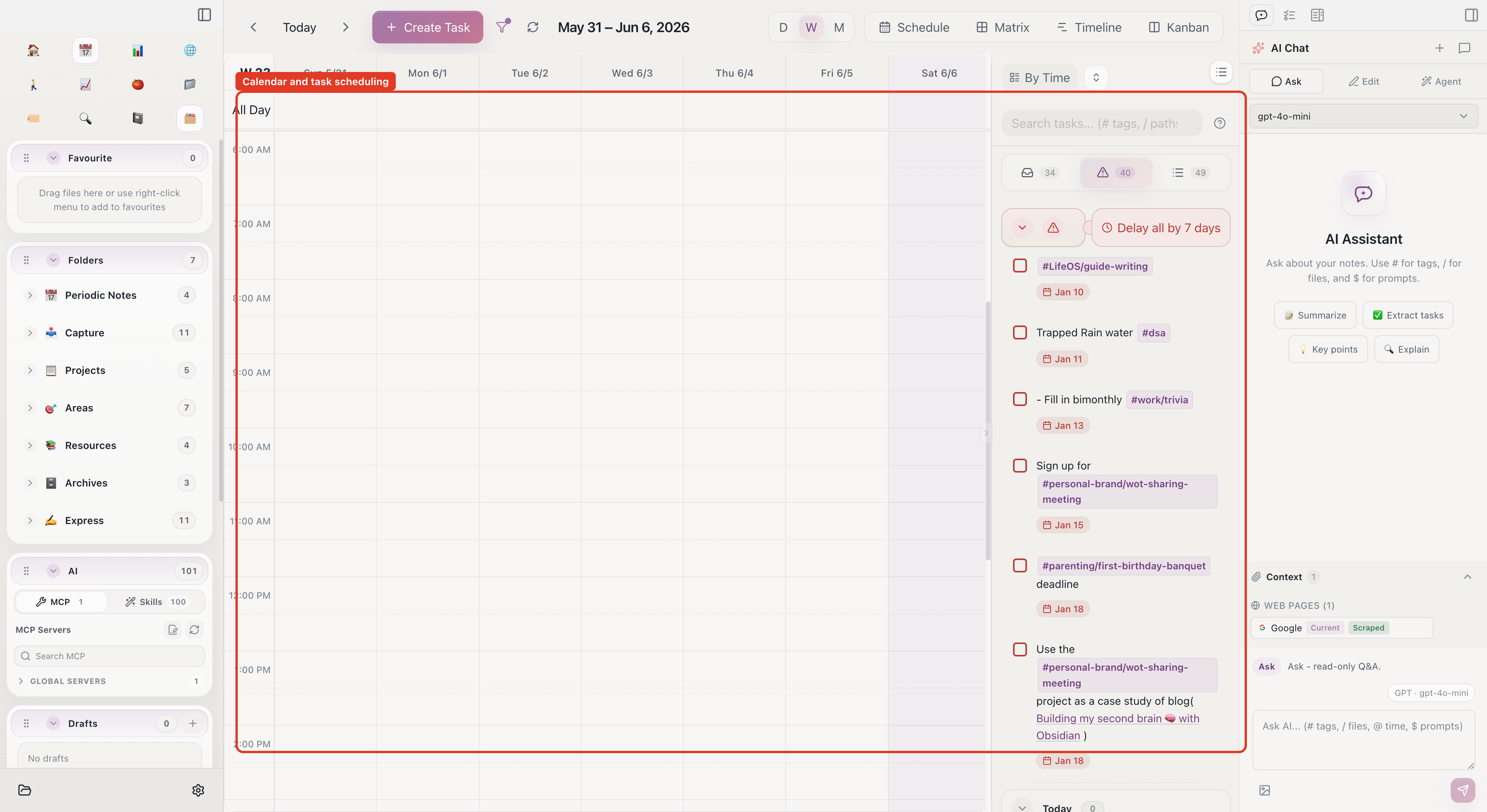
Week View
Hourly display of the week's schedule. Good for precise daily time planning.
Schedule View
List-style display of upcoming events.
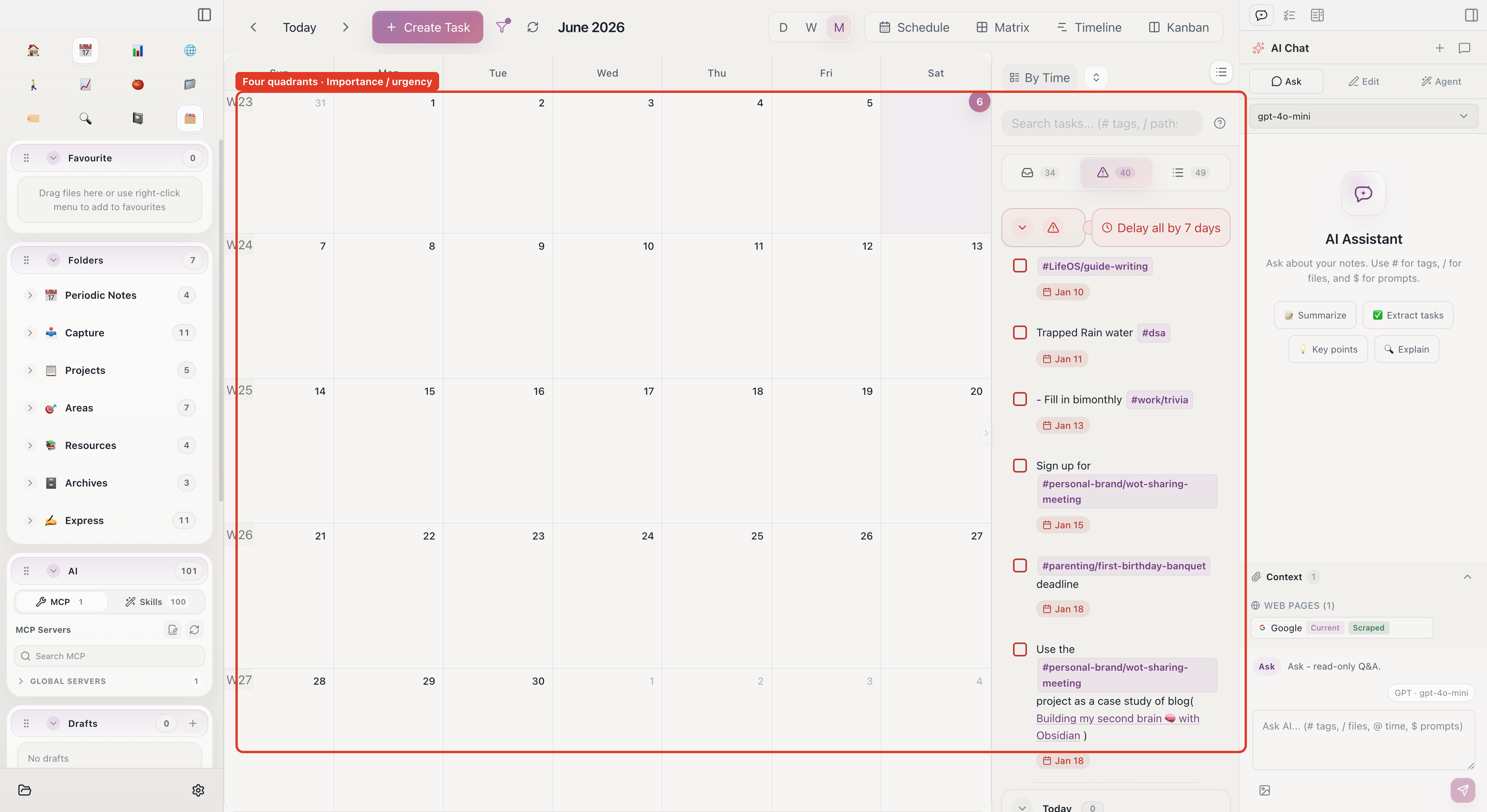
Four-Quadrant View
Categorize tasks by urgency and importance:
Drag tasks to different quadrants to prioritize.
Create Events
- Click empty space in the month/week view
- Fill in event title, time, notes
- Save
Or drag tasks from the task inbox onto the calendar to auto-create timed events.
Edit and Delete Events
- Click event cards to open the edit panel
- Drag event edges to adjust duration
- Drag events to other dates to reschedule
- Right-click events to delete
Recurring Events
Set repeat rules when creating events: daily, weekly, monthly, etc. Based on the rrule standard.
Sync External Calendars
Configure iCloud, Google Calendar, generic CalDAV, or ICS subscriptions in Settings -> Calendar:
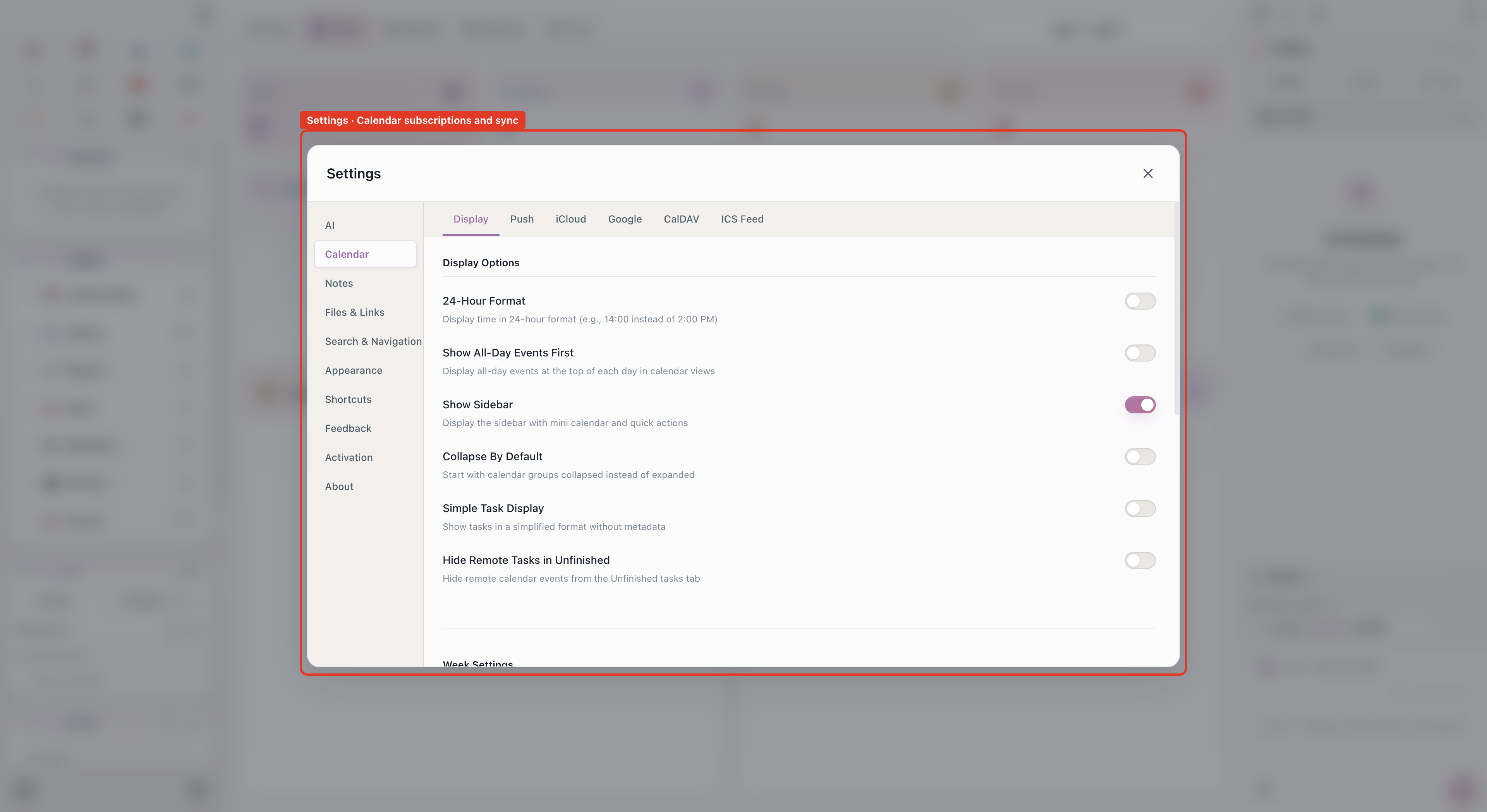
See Calendar Subscription for provider-specific setup steps and limitations.
CalDAV and Google Calendar support two-way sync; ICS subscriptions are read-only and only display remote events.
Related
- Task Management -- Drag from task inbox to calendar
- Pomodoro Timer -- View work time on calendar