
Editor
Aino LifeOS uses a WYSIWYG Markdown editor. You write standard Markdown, but see rendered results in real-time.
Obsidian Flavored Markdown Compatible
Aino LifeOS is fully compatible with Obsidian Flavored Markdown (OFM), including:
- Wikilink --
[[Note Name]]bidirectional link syntax - Embed --
![[Note Name]]embed other note content - Block reference --
![[Note Name#^id]]reference specific content blocks - Callout --
> [!note]and other callout syntax - Tags --
#tag-nameand nested tags#parent/child - Frontmatter -- YAML metadata (Properties)
- Math formulas --
$inline$and$$block$$LaTeX formulas - Task syntax --
- [ ]and- [x]checkable tasks - Highlight --
==highlighted text==
This means you can directly open an Obsidian Vault and all notes will render correctly. See Obsidian Compatibility Overview for details.
Create a Note
In the left file tree:
- Right-click a folder -> New File
- Enter a filename (
.mdextension optional) - The file opens in the center editor -- start writing
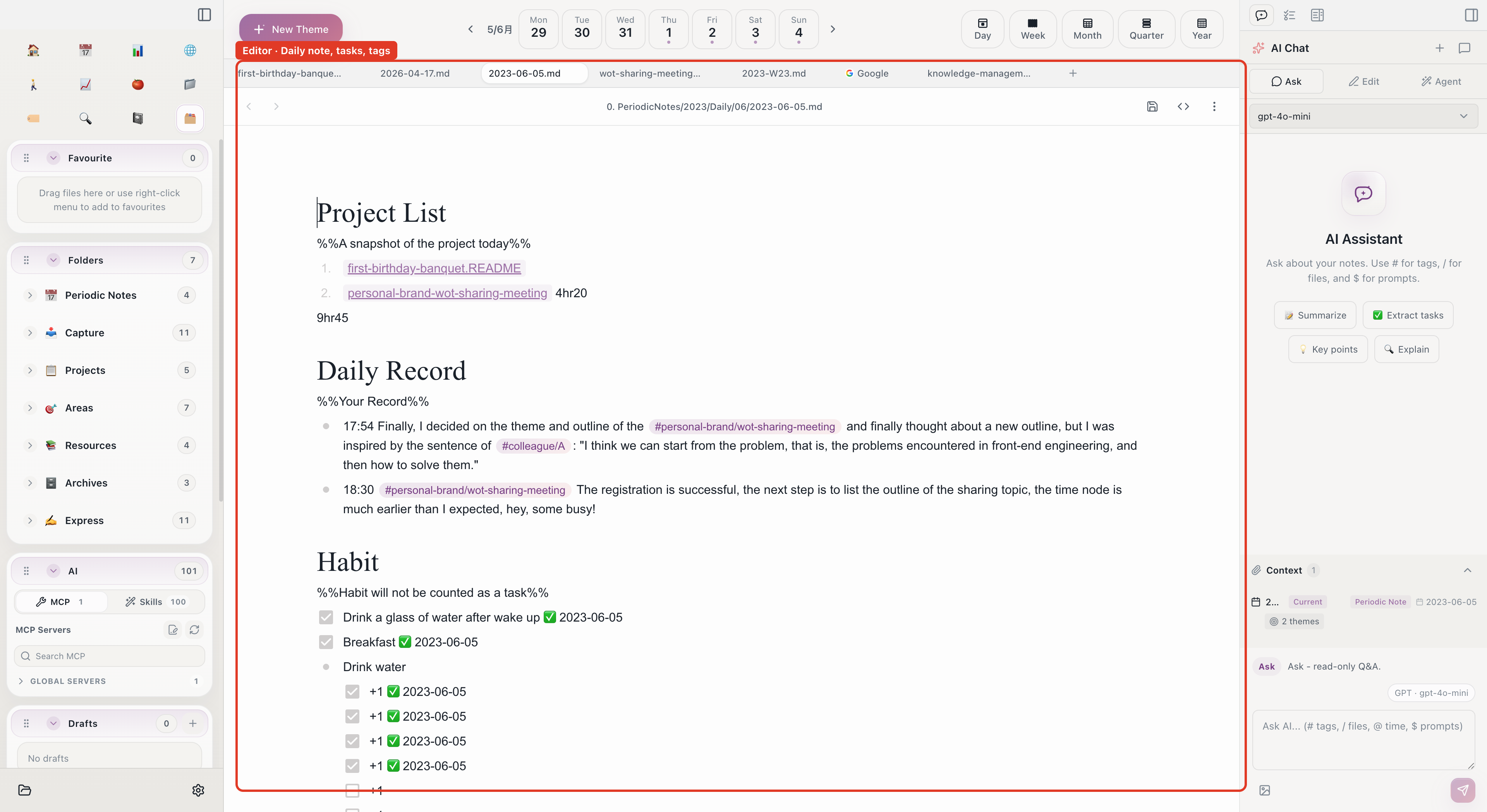
Basic Formatting
Type Markdown syntax directly -- the editor renders in real-time:
Or use toolbar buttons and shortcuts:
List and Task Row Actions
Move the pointer over a bullet or task row to reveal its row-end actions. You can also right-click the row to open the same commands:
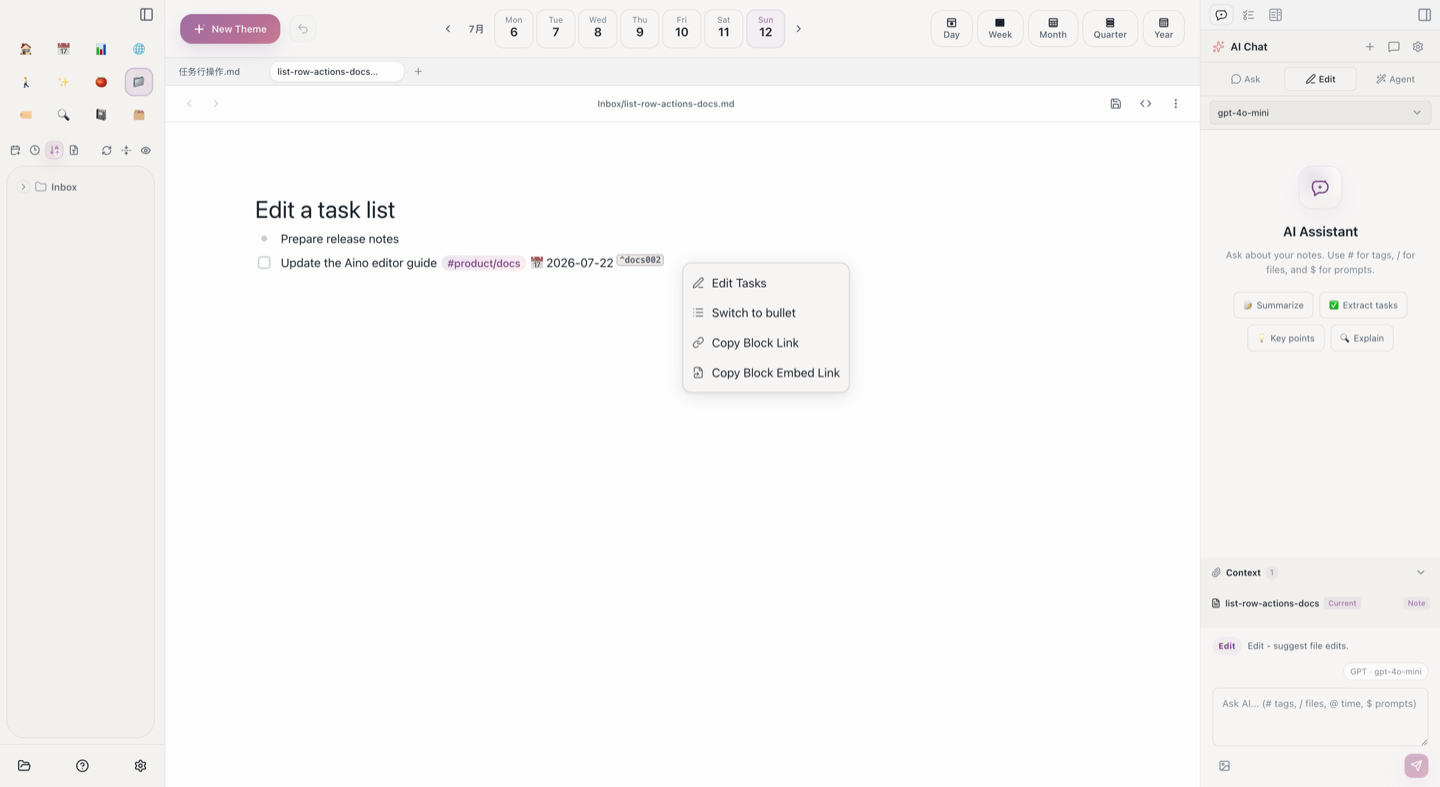
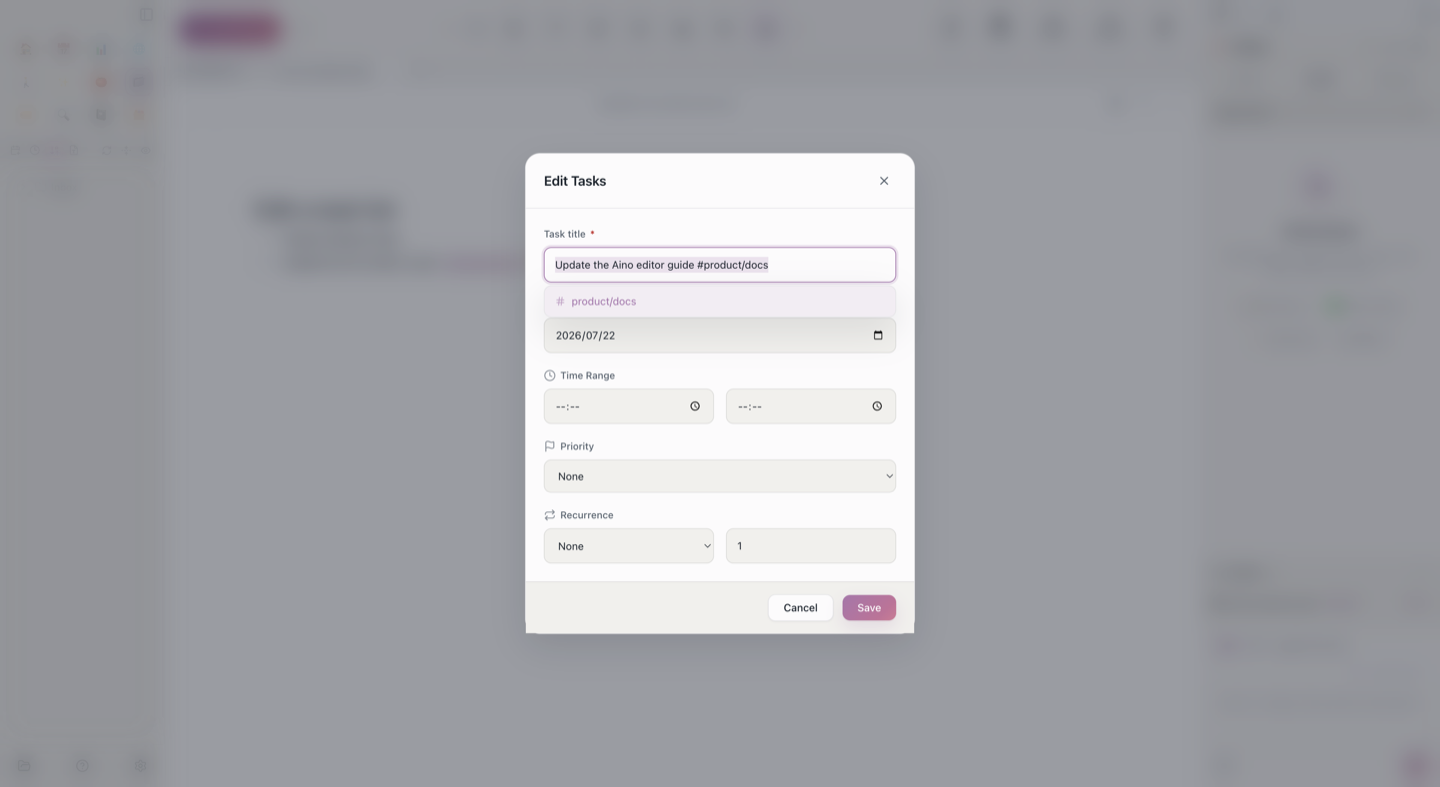
Select Edit Task to update the title, due date, time range, priority, and recurrence in one dialog. Existing task metadata such as tags and block IDs is preserved.
The same row actions work in the Milkdown visual editor and the CM6 live-preview source editor, in both primary and secondary panes.
Link to Other Notes
Type [[ to trigger note search:
- Type
[[ - Search by keyword
- Select the target note
- Generates a
[[Note Name]]link
Click the link to jump to the target note. This is bidirectional linking -- two notes connected to each other.
Insert Tables
Type |Col1|Col2| and press Enter to auto-create a visual table. Edit cell contents directly.
Insert Code Blocks
Type three backticks ``` plus a language name for syntax-highlighted code blocks:
Supports 100+ programming languages for syntax highlighting.
Insert Math Formulas
- Inline:
$E=mc^2$ - Block:
$$...$$
LaTeX formulas render instantly.
Embed Excalidraw Diagrams
Create and edit hand-drawn style diagrams directly in notes. Great for flowcharts, architecture diagrams, mind maps.
Multi-Tab Editing
Open multiple files like browser tabs:
- Click files in the tree to open in new tabs
- Drag tabs to reorder
- Middle-click to close
- Right-click for "Close Others," "Close Right," etc.
Split View
Split the editor into two columns to view and edit two files side by side. Great for referencing one note while writing another.
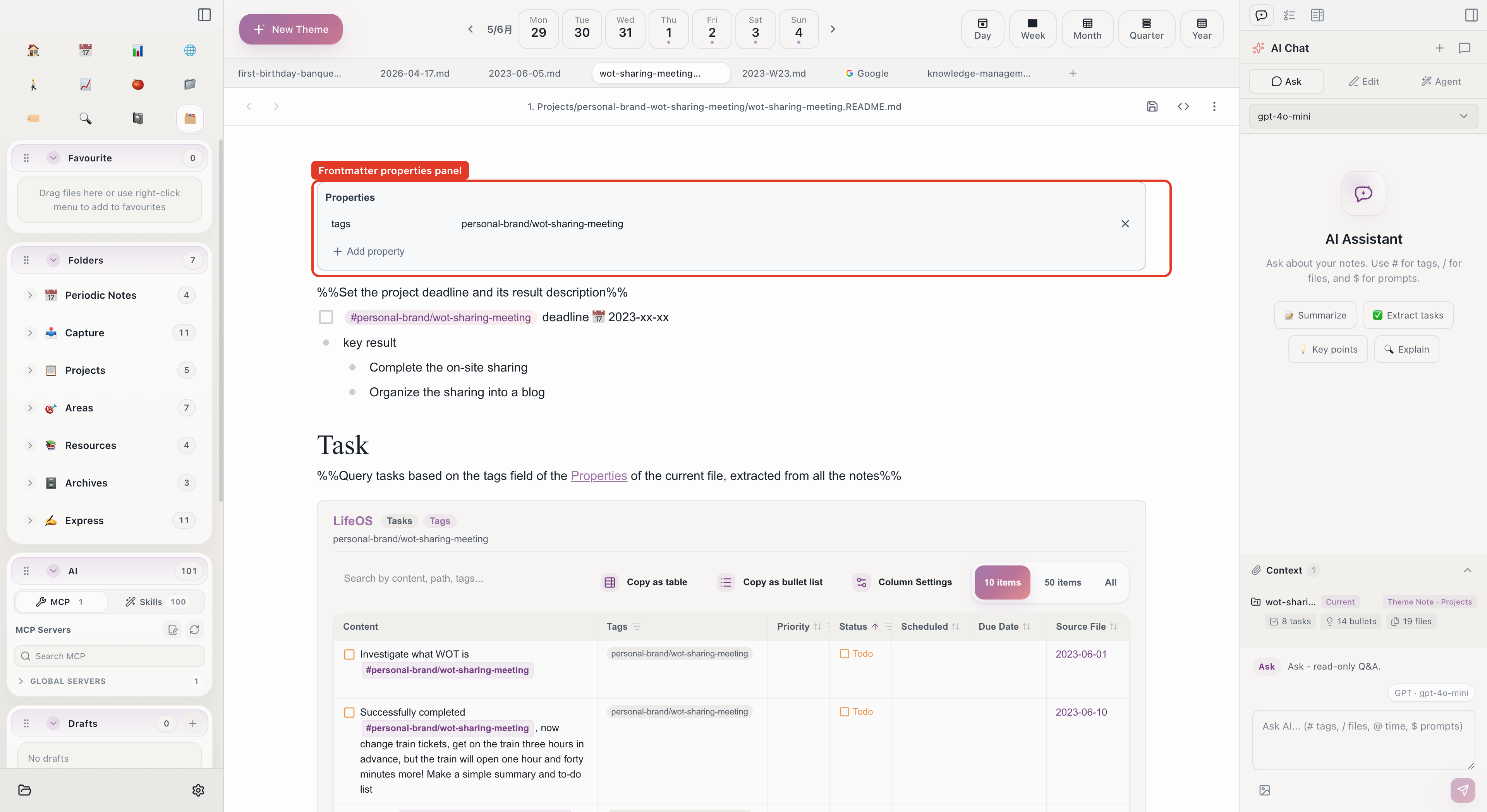
Edit Frontmatter
YAML metadata (Frontmatter) at the top of notes is displayed as a form for easy editing of tags, categories, dates:
Auto-Save
Files auto-save after changes -- no manual save needed. If another program (like Obsidian) modifies the same file simultaneously, a conflict prompt lets you choose which version to keep.
In-Document Search
Cmd/Ctrl + F-- Search in current fileCmd/Ctrl + H-- Find and replace