
AI Workbench (Experimental)
AI Workbench turns a project, task, topic, or output into a persistent work scene. Maintain scene materials in the center, work with AI in the right sidebar, and use the workbench receipt to see what the current run actually read or changed.
AI Workbench is experimental and enabled by default. You can hide its entry under Settings → Experiments. Existing work scenes and AI conversations are not deleted.
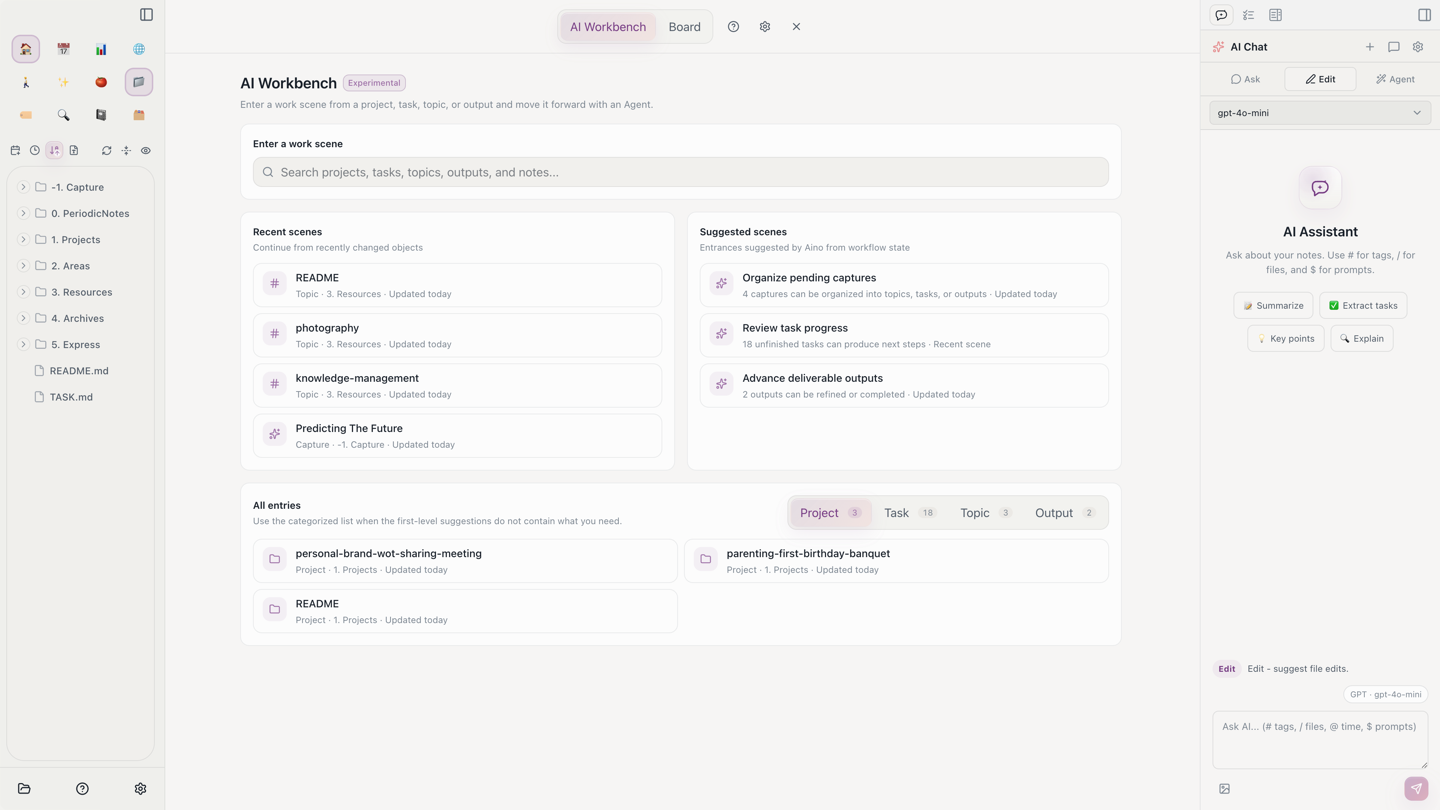
What the Workbench Owns
AI Workbench is not a second chat window. It is a view for constructing durable input with AI and observing execution results:
- A work scene keeps the long-lived material scope for one topic.
- The right AI sidebar owns the current conversation, model, mode, temporary context, and permissions.
- The run receipt projects verified reads and changes back into the workbench.
This separation avoids restating the project background in every conversation and prevents a temporary attachment from silently becoming permanent scene scope.
Enter a Work Scene
Click AI Workbench · Experimental in the upper-left navigation. You can enter through:
- Recent scenes for recently changed projects, tasks, topics, or outputs.
- Suggested scenes for pending captures, unfinished tasks, and outputs that can move forward.
- Search across projects, tasks, topics, outputs, and notes.
- All entries when the target is not visible in the first-level suggestions.
Entering a scene does not hide the left sidebar. You can still browse the vault, open files, and switch views.
Scene Materials vs. Right-Side Context
This is the most important scope boundary:
You can search and add materials, pin important items, or remove stale items. Added materials are saved with that scene and remain when you return.
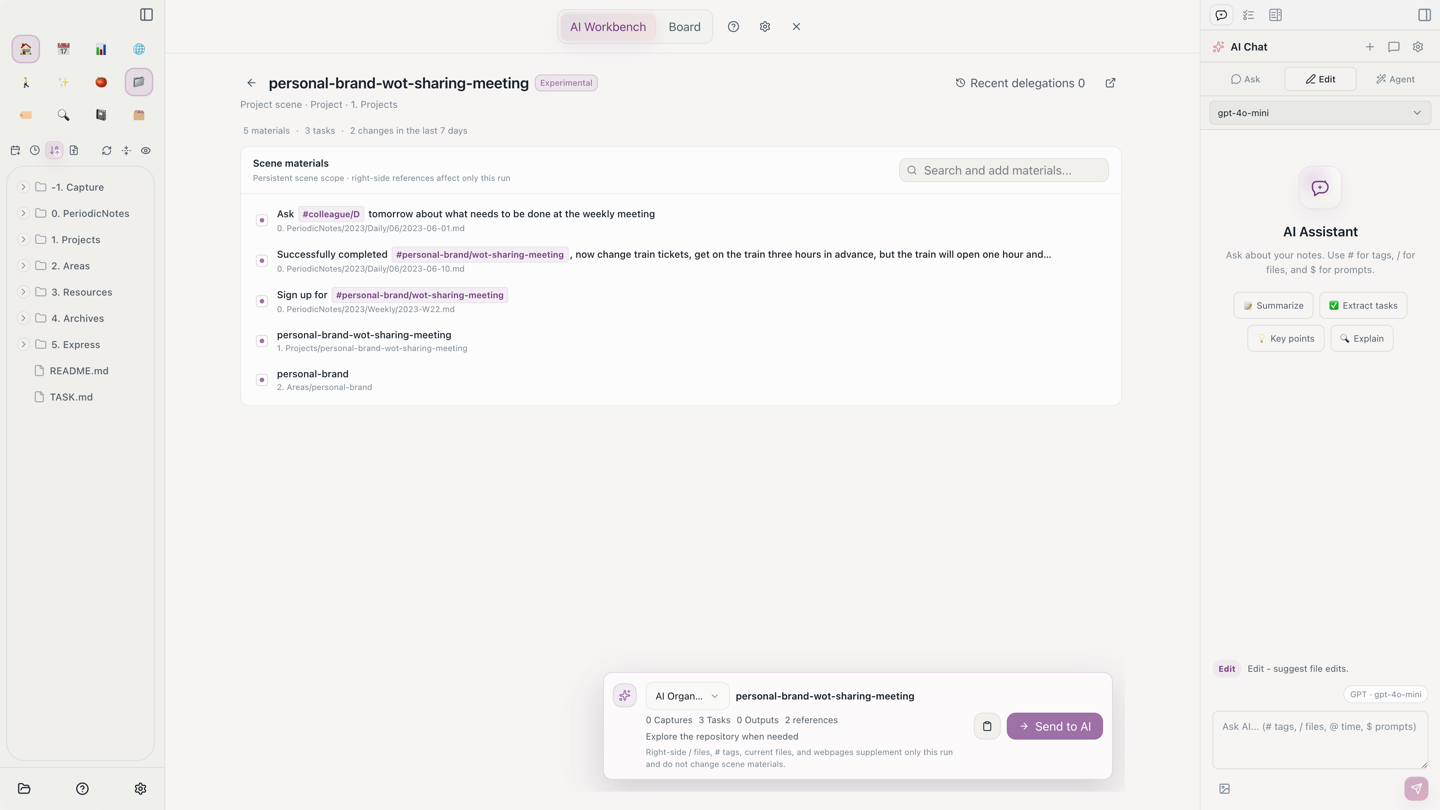
Send the Scene to AI
Choose an action in the delegation bar and click Send to AI. Aino then:
- Summarizes captures, tasks, outputs, and references in the scene.
- Builds a readable multi-line handoff with source paths and excerpts.
- Creates a new conversation in the right sidebar and sends it immediately.
- Tells the Agent to prioritize the current scene while allowing broader vault exploration when necessary.
Available actions include AI Organize, Generate next steps, Check blockers, and Generate output. Continue refining the request in the right conversation after the handoff starts.
Read the Run Receipt
The delegation bar becomes the receipt for the current run:
- Running shows how many materials AI actually read.
- Complete shows created tasks, updated files, and outside-scene materials.
- Task / file counts locate and briefly highlight matching workbench items.
- Outside-scene materials list files or webpages AI opened during this run but that are not yet in the scene.
Outside-scene materials only include successful read calls. Search hits that were never opened do not count as reads, and failed or pending calls do not count as results. Each item shows its source tool, such as Read or WebFetch. Use Add to scene only when the material should become durable scope.
Use Recent delegations near the scene title to inspect previous actions and result counts without duplicating the full chat history.
Focus Is Not a Hard Boundary
Agent mode can explore the whole vault. A work scene is a priority scope, not a security sandbox:
- AI should read scene materials first and expand only when needed.
- Right-side temporary context supplements only the current run.
- Newly discovered vault material is not added to the scene automatically.
- If a task must stay within specific files, state that constraint explicitly and use appropriate write permissions.
AI Workbench vs. AI Organize
Use AI Organize (Experimental) for batch selection. Use AI Workbench when a project or topic needs continuity across multiple runs.
Related
- AI Organize (Experimental) - Select content for one organization run
- AI Smart Chat - Understand Ask, Edit, Agent, and right-side context
- AI Control of the Current Interface - Let Agent operate Aino's UI
Try Aino AI now
Put AI to work inside your knowledge base
Try Aino Desktop Pro free for 7 days, open a local Markdown vault, and start with a question, a summary, or one reviewable agent task.
- 7-day free trial
- Local Markdown
- Reviewable results