
Sync Your Aino Vault (Experimental)
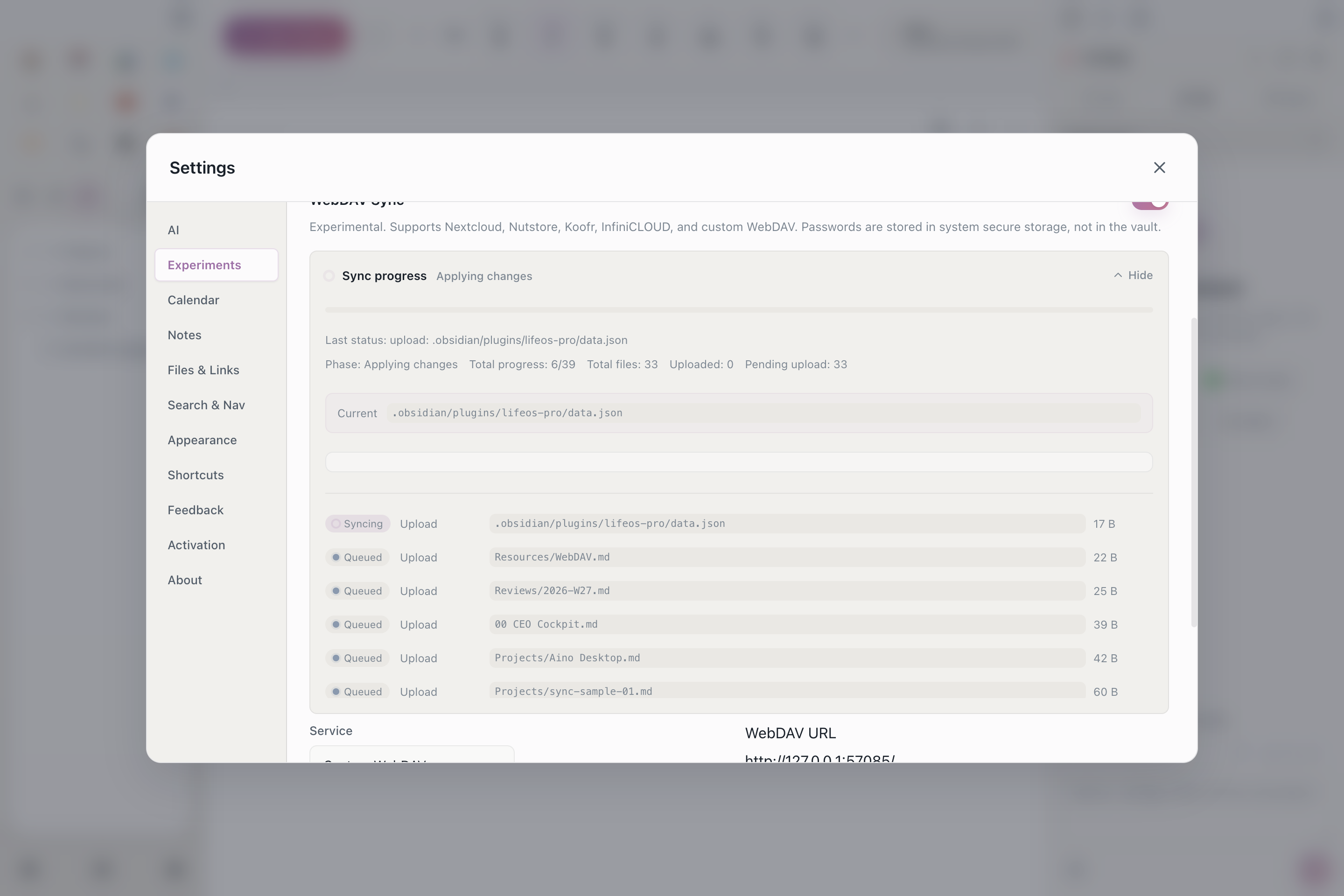
Aino Vault sync is experimental. Back up important content before first use, verify the connection and cross-device behavior with a test vault, and only then connect your primary vault.
Aino sync is designed for personal continuity: keep one Markdown vault usable across desktop and mobile. It is useful for backup, migration, and working across devices. It is not real-time team collaboration, and your notes do not go through an Aino-hosted sync server.
For English-speaking users, the easiest starting point is Koofr WebDAV. It gives you a regular cloud storage account, a free 10 GB plan, and an official WebDAV endpoint.
Recommended: Koofr WebDAV
Create a Koofr account first, then generate an application-specific WebDAV password in Koofr. Do not use your main Koofr account password in Aino.
Use these values in Aino:
Koofr's official WebDAV help explains the same host, app-password, and root-path behavior.
Enable sync on the first device
- Open Settings in Aino.
- Find Sync and enable it.
- Choose WebDAV.
- Select Koofr if the preset is available, or choose Custom.
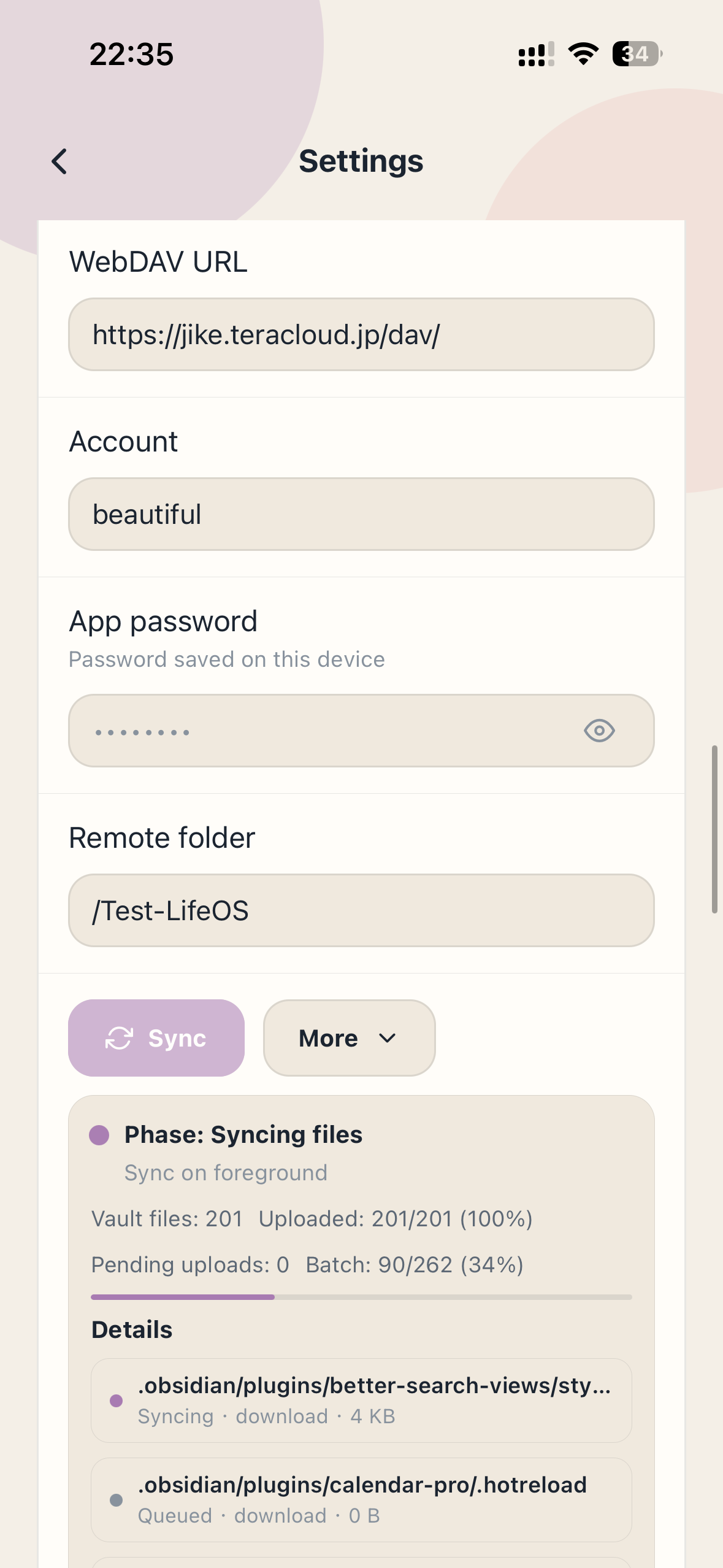
- Enter the server URL, username, WebDAV app password, and remote root.
- Click Test connection first.
- Click Sync and wait for the first run to finish.
The first run scans your local vault and uploads files in batches. Large vaults take longer. Expand the details area to see the current file, batch progress, and failed items.
Add a second device
Use the same remote settings on the second device:
- Same storage type: WebDAV
- Same Koofr account
- Same remote root, for example
/Aino - A valid WebDAV application password
Run Test connection first, then start sync. The second device will download the missing files into the local vault.
Use a different remote root, such as /Aino-test, when you want a separate test sync space. Devices only sync with each other when the remote root matches.
Advanced option: S3-compatible storage
Aino also supports S3-compatible object storage. This can be more predictable for large Markdown vaults because object storage has clear PUT, HEAD, GET, LIST, and DELETE semantics.
S3 is still more technical than Koofr WebDAV. Use it if you are comfortable creating buckets, access keys, and endpoints.
Common options include:
For S3, Aino needs:
- Endpoint
- Bucket
- Region
- AccessKey ID
- AccessKey Secret
- Prefix, such as
/Aino - Path-style addressing when your provider requires it
Always test the connection before relying on the bucket for your main vault. Provider pricing and free tiers can change, so check the provider's official pricing page before storing important data.
Cloudflare R2 setup
Cloudflare R2 works with Aino through its S3-compatible API. You do not need to make the bucket public, enable a public development URL, or configure CORS for Aino sync.
Prepare these values in the Cloudflare dashboard:
- Go to R2 object storage and create a bucket.
- Create an R2 API token for S3 clients. For personal sync, scope it to the target bucket with Object Read & Write permission.
- Copy the Access Key ID and Secret Access Key immediately. The secret is only shown once.
- Copy the bucket name and account-level S3 API endpoint.
Useful Cloudflare docs:
- R2 API tokens and S3 credentials
- R2 S3 API compatibility and bucket region
- R2 jurisdiction-specific endpoints
Use these values in Aino:
If your bucket uses the EU jurisdiction, use https://<ACCOUNT_ID>.eu.r2.cloudflarestorage.com instead of the default endpoint.
Do not paste a Cloudflare Account API token into Aino. Aino needs the R2 S3 client credentials: Access Key ID and Secret Access Key.
S3 or WebDAV?
Practical rules
- Back up important vaults before turning sync on.
- Let the first device finish its initial sync before adding the second one.
- Avoid editing the same file on two devices at the same time.
- Aino writes
.gitand.obsidianto.aino-sync-ignoreby default. Edit that ignore file from settings when you need different rules. - Large attachments and plugin folders slow down the first run.
Troubleshooting
Test connection fails
Check the URL, username, and password. For Koofr, make sure you generated an application-specific WebDAV password.
401 or 403
The password or access key is wrong, expired, or missing permission. Generate a new app password or access key and update every device.
400 with S3
Check endpoint, bucket, region, prefix, and path-style addressing. Some S3-compatible services are stricter than AWS S3 about object key characters.
The second device does not see changes
Make sure both devices use the exact same remote root or S3 prefix. /Aino and /Aino/backup are different sync spaces.
Sync keeps scanning the local vault
Large vaults can take time, especially on Android storage providers. If the progress numbers keep changing, let it continue.
Next steps
- Configuration Guide — review AI, calendar, and other settings
- Migrating from Obsidian — open an existing Obsidian vault in Aino
- Task Management — use synced notes across devices