
Configuration Guide
Theme Customization
- Mode -- Light / Dark / System
- Accent colors -- Custom primary, secondary, tertiary colors
- Gradient effects -- Toggle gradient UI effects
- Background -- Custom app and editor background colors
AI Model Configuration
Supported Vendors
Setup Steps
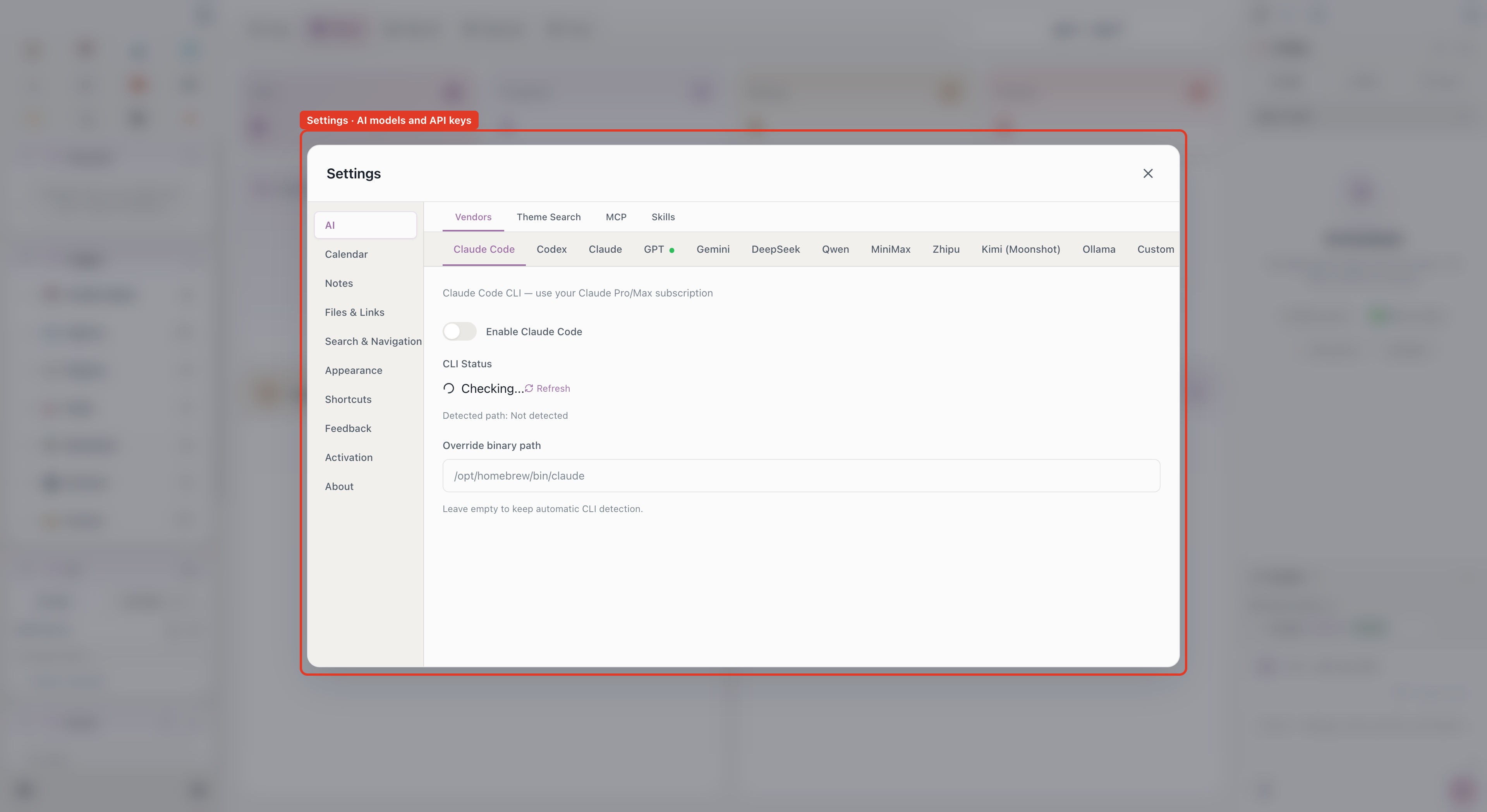
- Go to Settings -> AI
- Select a vendor
- Enter API key (not needed for Ollama)
- Optional: custom Base URL
- Choose default model
AI Subpages
Under Settings → AI, Aino also has subpages for safety, context, and tools:
The experimental Allow AI to control the current interface switch is in Settings → Experiments. When enabling it, Aino asks whether to load the aino-desktop-automation Skill. AI can operate the current Aino Desktop interface only after you confirm.
Calendar Integration
CalDAV
Supports standard CalDAV protocol:
- iCloud Calendar
- Nextcloud
- Other CalDAV servers
Google Calendar
Connect Google Calendar via OAuth authorization for two-way sync.
Vault Sync
Aino can sync the same Markdown vault through S3-compatible object storage or WebDAV. This capability is currently experimental. Start with Sync Your Aino Vault (Experimental) if you want desktop and mobile to share one vault. English-speaking users should usually start with Koofr WebDAV; advanced users can use Cloudflare R2, Backblaze B2, Tigris, AWS S3, or another S3-compatible bucket.
Keyboard Shortcuts
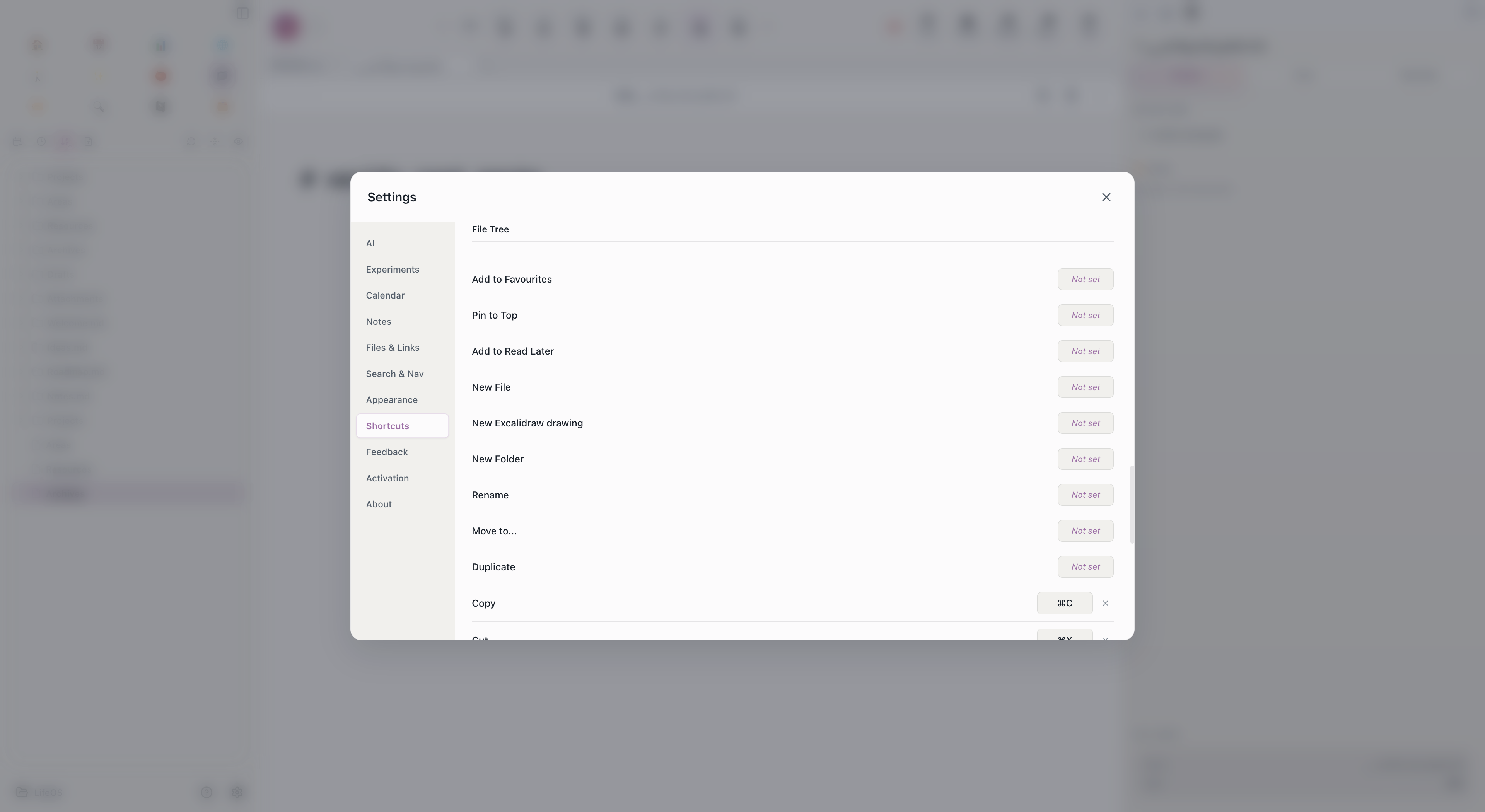
Aino LifeOS supports fully customizable keyboard shortcuts. Go to Settings -> Shortcuts to view and modify.
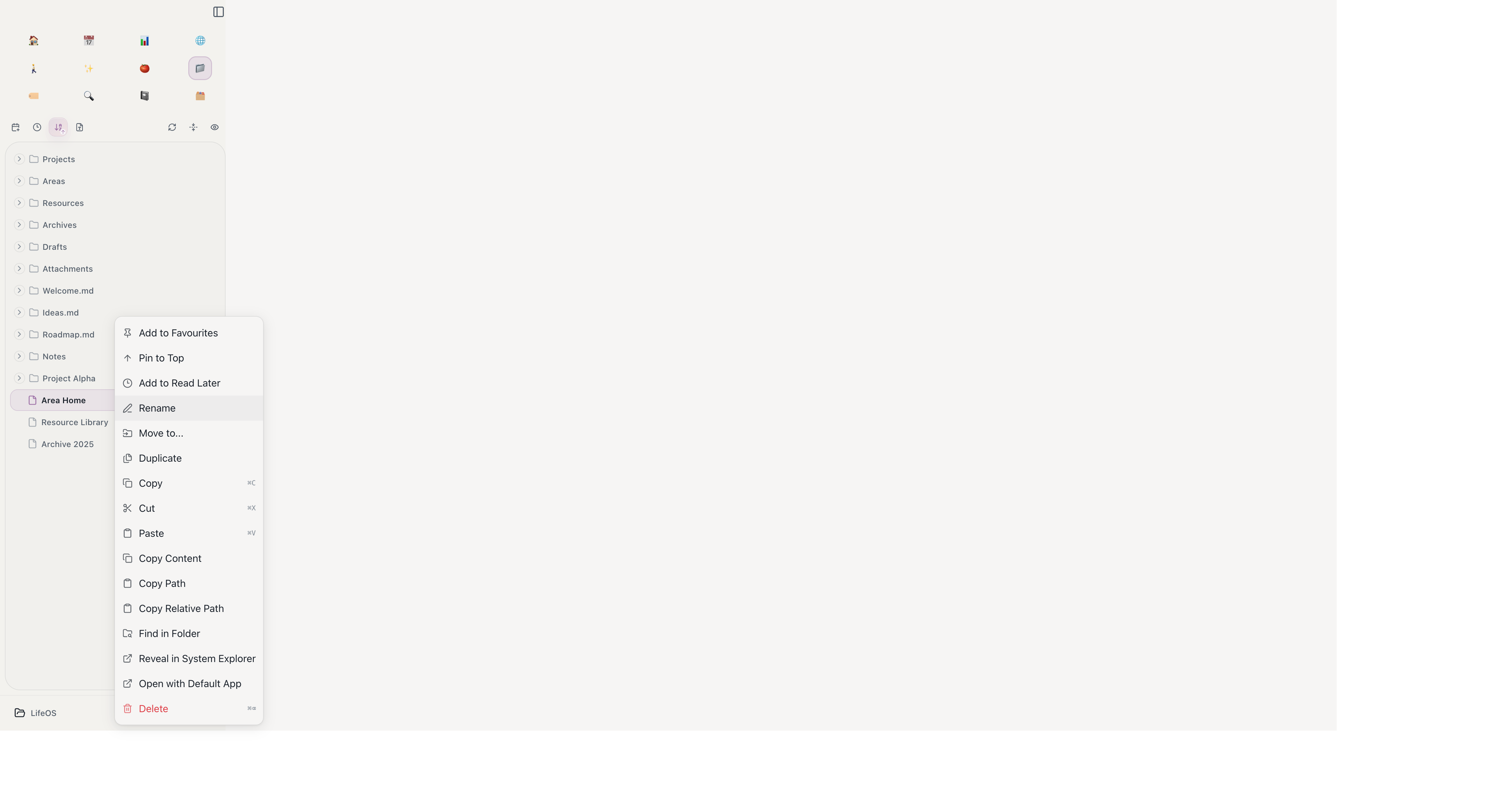
The file tree uses standard system shortcuts by default: Cmd + C, Cmd + X, and Cmd + V on macOS; Ctrl + C, Ctrl + X, and Ctrl + V on Windows and Linux. To delete a file or folder, use Cmd + Delete on macOS or Ctrl + Delete on Windows and Linux. Select an item in the tree before using the shortcut; the existing deletion confirmation still appears. Cut items appear translucent, and Esc cancels the cut. Copies can be pasted repeatedly, including across the Files tree, PARA trees, and sidebar file entries.
The context menu also includes Copy Content, Copy Path, Copy Relative Path, Reveal in System Explorer, and Open with Default App. Other than Copy, Cut, Paste, and Delete, file-tree actions have no shortcut by default and can be configured under Settings -> Shortcuts -> File Tree.
MCP Servers
Configure MCP servers in:
User-level Claude / Codex MCP servers are not exposed to ordinary models by default. Enable Global MCP servers in Settings → AI → MCP when you want Aino to load them.