
Retrieval
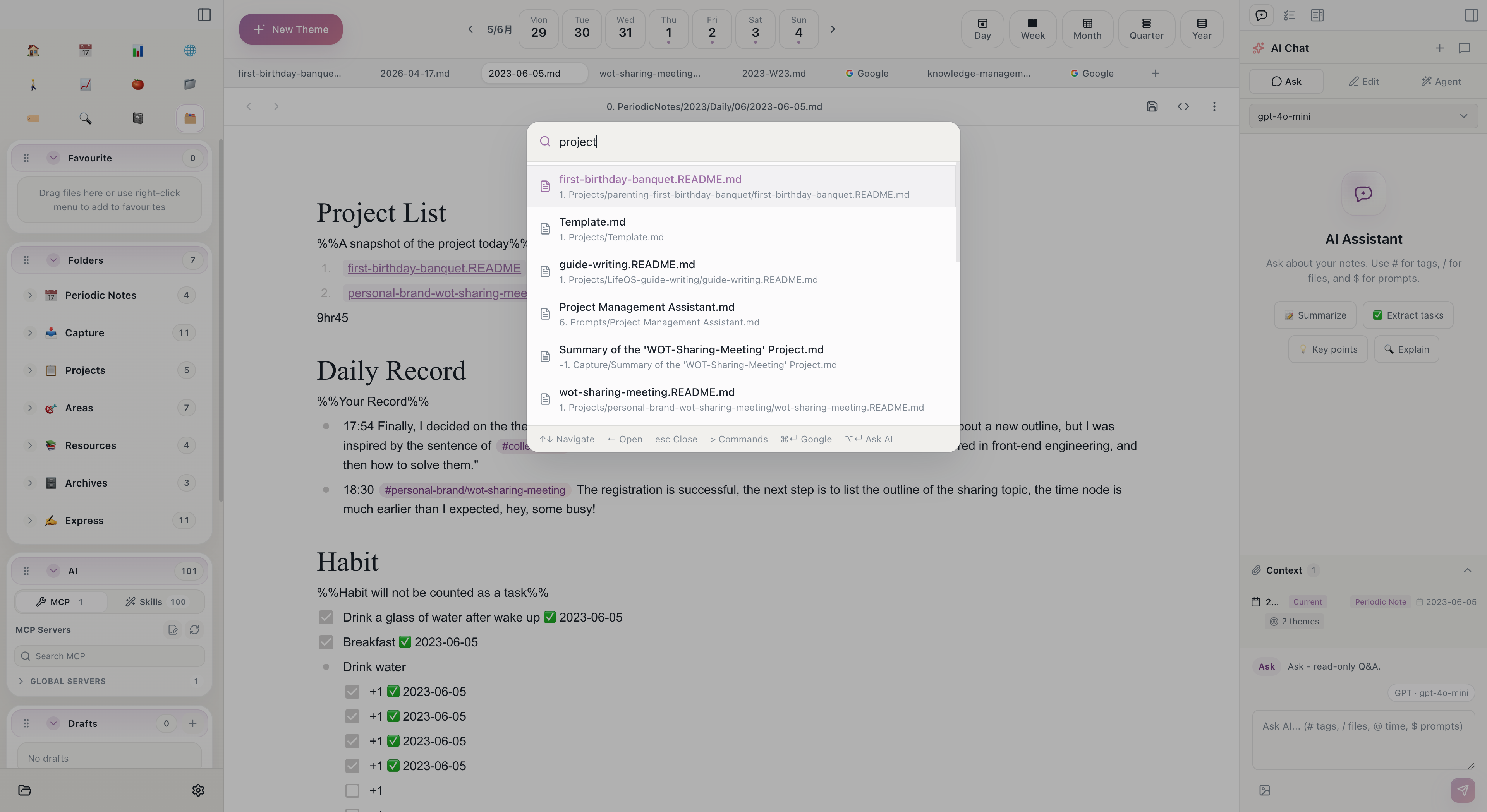
You've written plenty of notes -- how do you find them quickly? Aino LifeOS provides multiple retrieval methods, covering everything from precise lookups to casual browsing.
Retrieval via Tags
Theme Tags are the most direct retrieval entry point.
In the tag tree in the left sidebar, all tags are displayed hierarchically. Click any tag to view all notes under that tag. The tag tree supports expanding and collapsing, making it easy to browse level by level.
For example, clicking #工作/产品上线 shows all notes containing that tag -- regardless of which daily notes or theme folders they are scattered across.
Tag retrieval is especially suitable for finding all records under a particular topic. It transcends the boundaries of time and folders, aggregating related content from everywhere into one place.
Retrieval via Index Files
Each Theme Note serves as the index center for that topic. When you open a Theme Note, you'll see three areas automatically collected by the system:
The advantage of index files is that you don't need to remember "which day's daily note did I write this in" -- just open the corresponding topic's index, and all related content is already organized by type. Click any entry to jump to the original location.
Retrieval via Folders
The PARA folder structure provides a consistent organizational framework:
When you're unsure about a note's specific tag or keyword, you can start from the folder level. The benefit of the PARA structure is: if you roughly know which category something belongs to, you can narrow down the scope and locate it quickly.
In the file tree in the left sidebar, files are displayed by PARA categories. You can also type keywords in the filter box at the top of the file tree to quickly filter file names.
Retrieval via Full-text Search
When tags and folders can't help you locate something, full-text search is the ultimate fallback.
Click the search icon in the sidebar, or use a keyboard shortcut to open the full-text search panel:
- Enter keywords; search results are grouped by file
- Each match shows context, making it easy to judge whether it's what you're looking for
- Click a result to jump directly to the corresponding location
Full-text search supports:
- Regular expressions -- e.g.,
任务.*完成matches lines containing both "task" and "complete" - Path filtering -- Restrict the search scope to specific folders
- Case matching -- Exact case matching for English text
Retrieval via Quick Switcher
Press Cmd/Ctrl + P to open the Quick Switcher. This is the fastest navigation method:
- Type file name keywords -- fuzzy matching, supports pinyin initials
- Type
#tagname-- search notes by tag - Type a URL -- open in the built-in browser
The Quick Switcher is ideal when you clearly know the target note's name. Just a few letters and you can locate the target file.
Which Method to Choose
Related Topics
- Connection -- Learn how tags link the two systems together
- Search Features -- Detailed instructions for search functionality
- PARA Theme Management -- Detailed explanation of the PARA folder structure
Start with Aino
Turn this approach into your everyday workflow
Try Aino Desktop Pro free for 7 days, open an existing Markdown vault, or start with the complete example vault from your email.
- 7-day free trial
- Portable Markdown
- Complete example vault by email