
Example Vault Guides
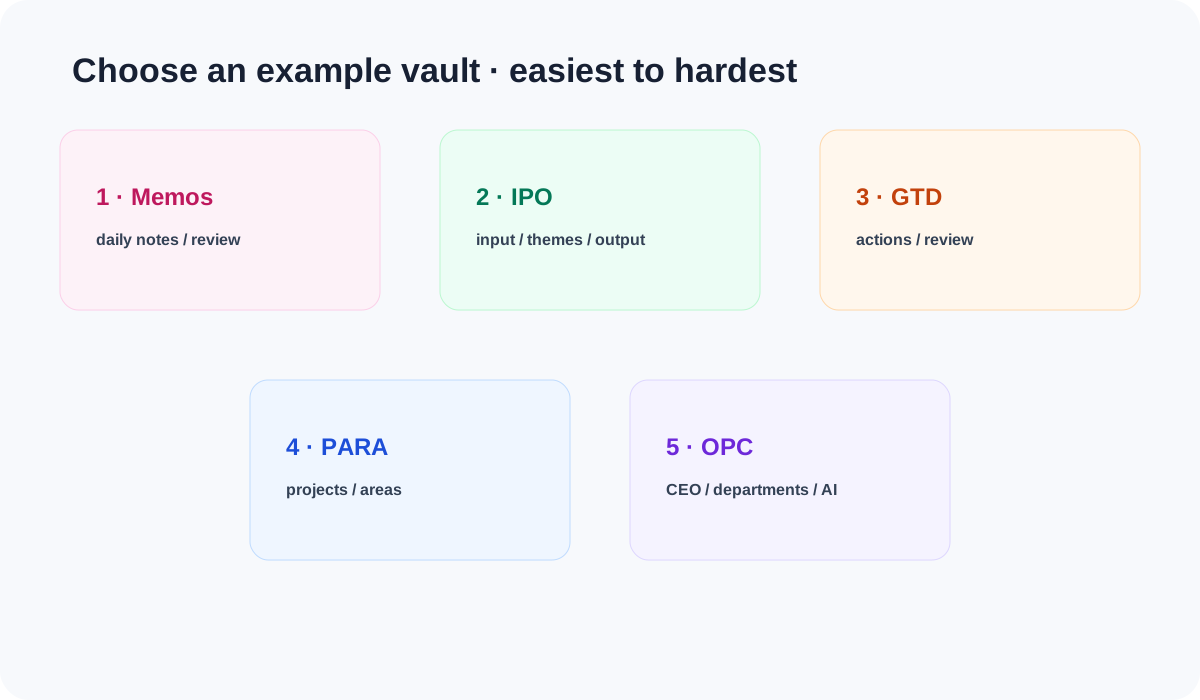
Aino LifeOS example vaults are working systems you can open directly. The complete package's Example Vault folder contains five filled examples—Memos, IPO, GTD, PARA, and OPC. Learn in one, then open its matching Blank Vault as your own main vault.
Do not ask which template is the most powerful. Start with the bottleneck you need to remove now:
The default recommendation runs from easiest to hardest: Memos -> IPO -> GTD -> PARA -> OPC. Start with Memos when daily capture is not stable; skip ahead when you already have a clear bottleneck. Memos is not a lesser edition; it is a time-based foundation that can grow into IPO, GTD, or PARA.
The five blank versions are LifeOS Pro Memos Blank Vault, LifeOS Pro IPO Blank Vault, LifeOS Pro GTD Blank Vault, LifeOS Pro PARA Blank Vault, and OPC LifeOS Blank Vault. They keep settings, folder skeletons, templates, and essential query pages without sample projects or business data.
Click Aino's bottom-left folder icon, choose "Open Existing Vault", select the innermost vault folder, and keep .lifeos/ plus .obsidian/.
Can templates be switched?
They share Markdown, periodic notes, and task syntax, so content can move, but templates are not one-click skins:
- Memos -> IPO / GTD / PARA is the natural upgrade. Keep all periodic and daily notes, then add the target folders, templates, and settings.
- IPO / GTD / PARA conversions require semantic reclassification in reviewed batches; changing one setting is not enough.
- Any template -> OPC should normally start in
OPC LifeOS Blank Vault, then receive selected projects, customers, and operating material. - Returning to Memos means stopping use of the taxonomy. Keep old folders so links and historical queries remain valid.
Never overwrite a working vault with a Blank Vault's .lifeos/settings.json.
Back up first and add only the reviewed folders and settings needed by the target.
Start with Aino
Turn this approach into your everyday workflow
Try Aino Desktop Pro free for 7 days, open an existing Markdown vault, or start with the complete example vault from your email.
- 7-day free trial
- Portable Markdown
- Complete example vault by email