
PARA Example Vault
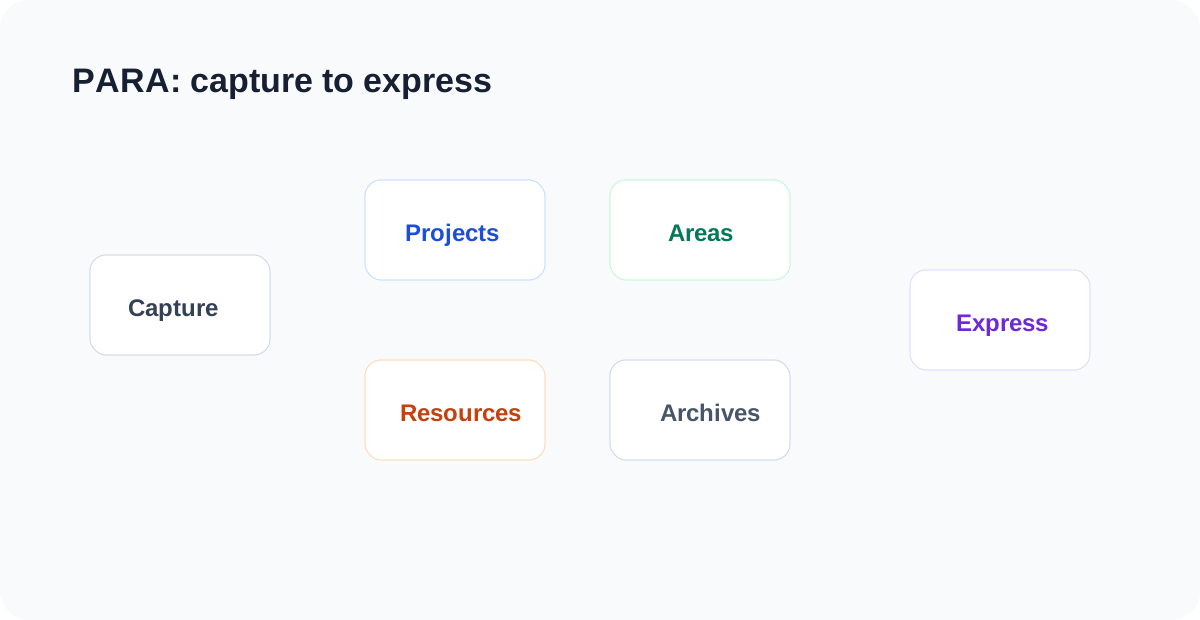
LifeOS Pro PARA Vault is the safest starter vault. Periodic notes keep the timeline; projects, areas, resources, and archives organize long-term work.
Start With the Whole Vault
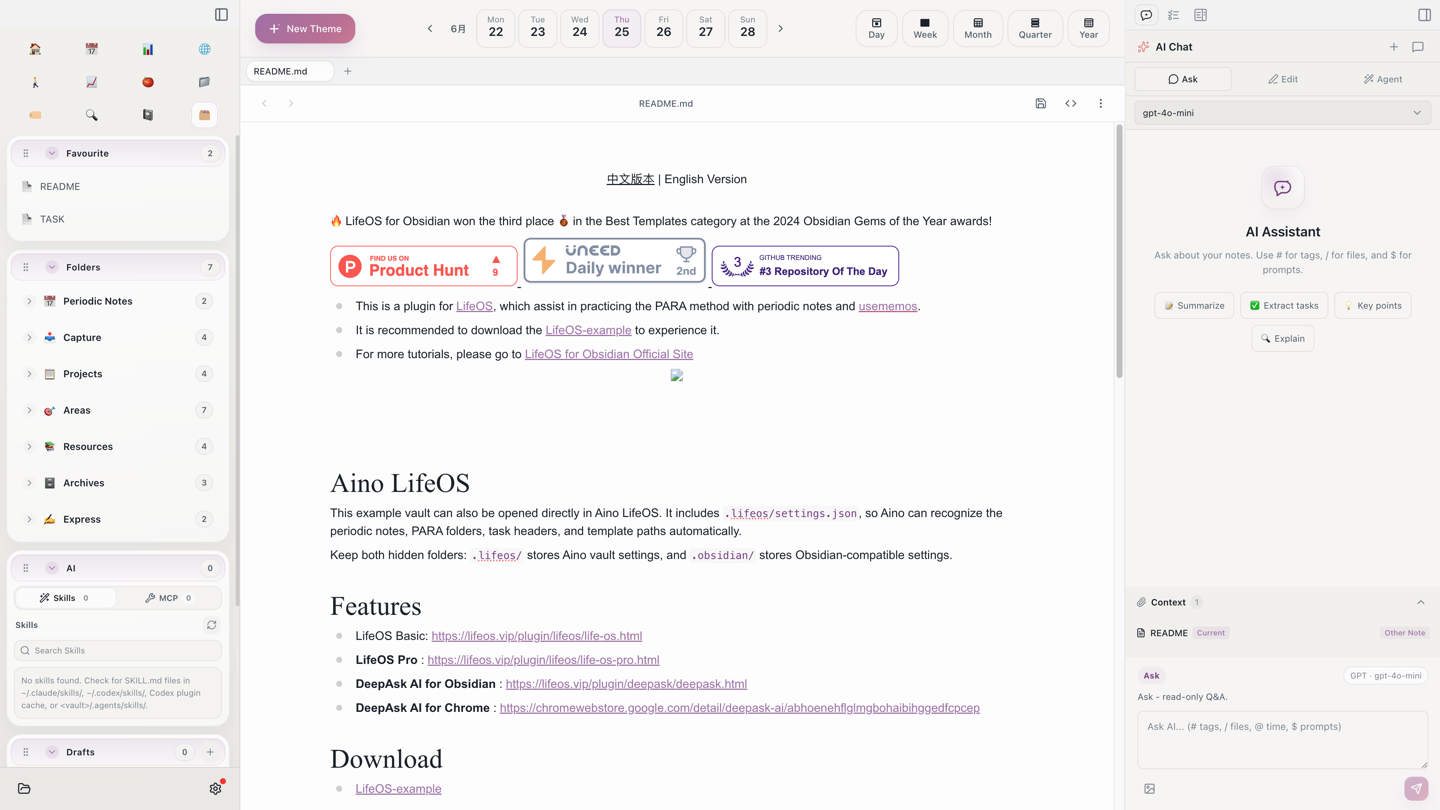
After opening the vault, start from the pinned README and TASK notes. The left Library view lays out PARA directly: capture holds temporary material, projects hold outcome-driven work, areas hold ongoing responsibilities, resources hold reusable material, archives hold completed work, and express holds published output.
Open a Project
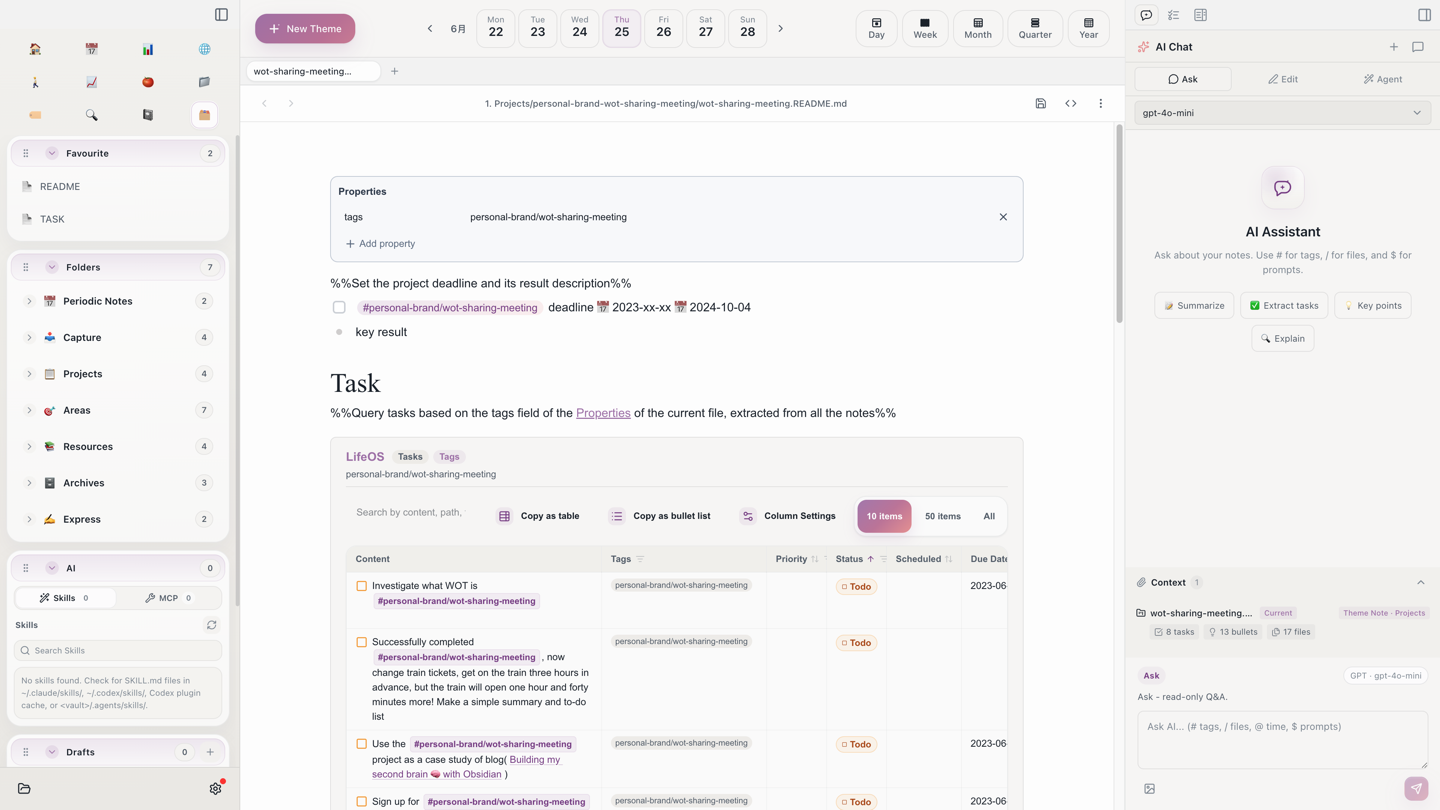
1. Projects/personal-brand-wot-sharing-meeting/ is a complete project sample. The project index collects the goal, tasks, material, and next actions; the outline and draft notes stay beside it as execution material. Use this shape when creating your own projects instead of sorting every note first.
Run It in 15 Minutes
- Open today's daily note and write one Aino / LifeOS operating record.
- Add a task:
- [ ] Update the PARA example-vault guide #personal-brand/LifeOS. - Confirm the task appears in Aino's task panel.
- Create
Aino Site Example Vault Docsunder1. Projects/. - Ask the right-side AI panel to summarize status, risks, and next actions from the current project.
Keep the default paths in .lifeos/settings.json until daily notes, tasks, and project review all work.
What to Read Next
- Periodic Notes — Learn how daily, weekly, and monthly notes create the timeline.
- Theme Notes — See how projects, areas, and resources aggregate records and tasks.
- Task Management — Collect
- [ ]tasks into one task inbox and view. - AI Chat — Ask the right-side AI panel to generate project reviews from notes.
Start with Aino
Turn this approach into your everyday workflow
Try Aino Desktop Pro free for 7 days, open an existing Markdown vault, or start with the complete example vault from your email.
- 7-day free trial
- Portable Markdown
- Complete example vault by email