
Time Management
Time is a non-renewable resource. Aino LifeOS helps you see where your time goes and consciously allocate your energy through time tracking, Pomodoro timer, calendar, and multi-level aggregation.
Project Time Tracking in Daily Notes
The "Project List" area in the daily note template automatically lists currently active projects. At the end of each workday, record the time spent on each project:
The final 8hr20 line is the day's total time and the baseline used to calculate each project's proportion. Keep the total on its own line at the end of the project list without a list marker. It does not have to equal the sum of project time; time not assigned to a project remains non-project time.
The formula is: project time proportion = time spent on one project ÷ total time for the day. Convert both values to minutes first. For example, Product Launch is 3hr00 (180 minutes) and the day's total is 8hr20 (500 minutes), so 180 ÷ 500 = 36%.
Energy Allocation
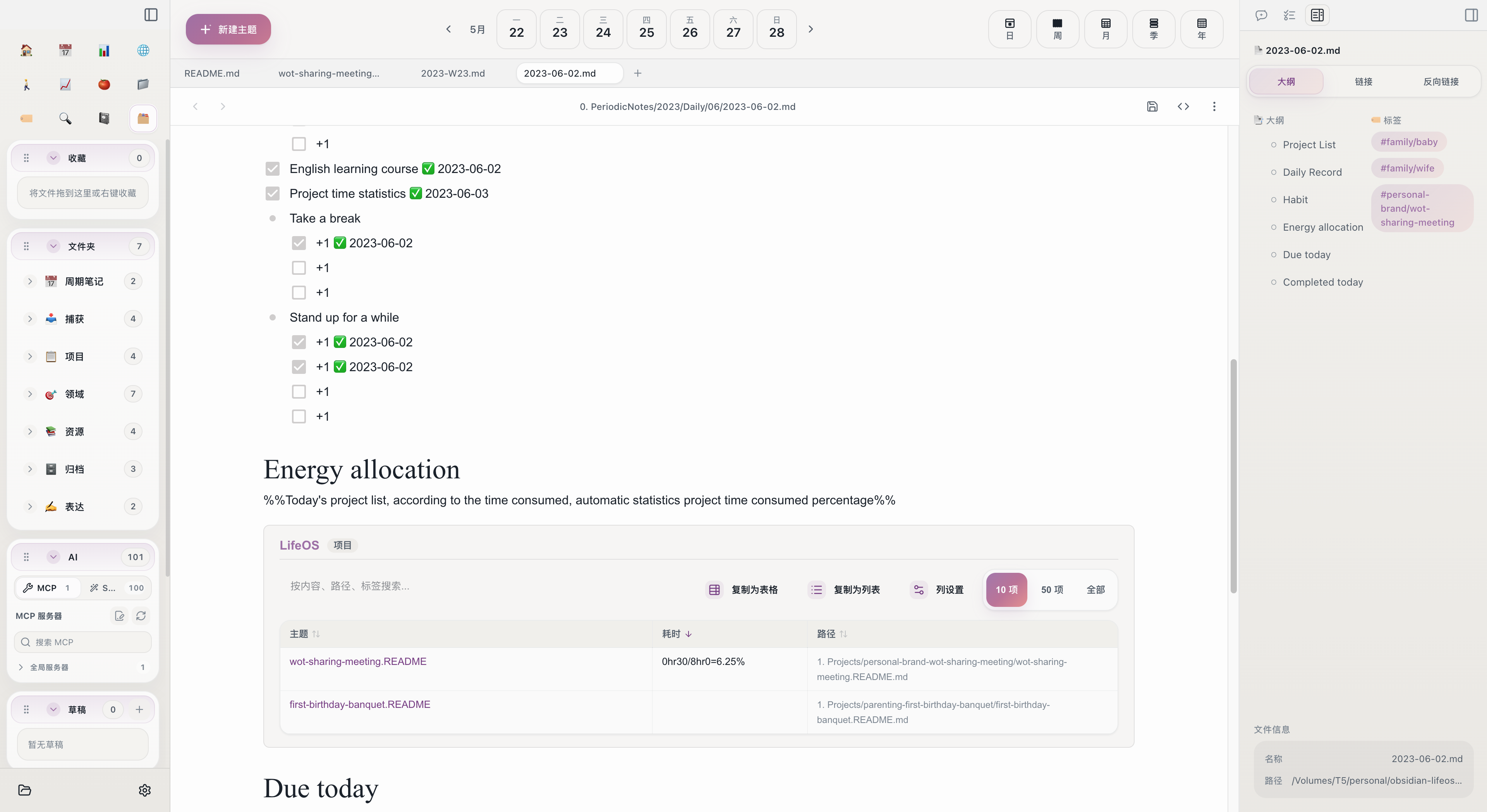
The ProjectListByTime code block at the bottom of the daily note uses the 8hr20 total as its baseline and automatically calculates the proportion of time spent on each project:
After rendering, you'll see something like this:
The three projects account for 4hr30, or 54% of the total, leaving 3hr50 as time not assigned to a project. This shows both how much time your important projects received and whether non-project time is taking up too much of the day. If an important project consistently has a low proportion, it's time to consider adjustments.
Pomodoro Timer
The Pomodoro timer helps you enter a state of focus -- one thing at a time.
Basic Usage
- Select a task from the task inbox
- Click the Pomodoro button to start a 25-minute countdown
- Focus on work; take a 5-minute break when the bell rings
- Repeat
Automatic Recording
Completed Pomodoro sessions are automatically written to the day's daily note, recording the task name and duration. You don't need to manually count how many Pomodoros you did today -- just open the daily note to see.
The Pomodoro timer is not just a timing tool; it's a work rhythm. 25 minutes of focus + 5 minutes of rest effectively prevents burnout. After completing 4 consecutive Pomodoros, it's recommended to take a 15-30 minute break.
Calendar and Time Blocks
The calendar view lets you manage tasks from a timeline perspective.
Task Scheduling
Drag tasks from the inbox onto specific time slots in the calendar to assign "execution times":
- Schedule important tasks that require focus during your peak energy hours (usually morning)
- Schedule meetings and communication in the afternoon
- Reserve buffer time for unexpected items
Visualizing Time Allocation
Switch to the calendar's week view to intuitively see this week's time allocation. If a day is packed with meetings, it means you need to adjust the schedule to ensure sufficient deep work time.
Multi-level Time Aggregation
Project time data doesn't stay only at the daily note level -- it aggregates progressively along the periodic note hierarchy:
The ProjectListByTime code block at each level automatically aggregates data from the daily notes below. What you see in the weekly note is the project time summary from all daily notes that week; what you see in the monthly note is the summary from all daily notes that month -- no manual calculation needed.
This multi-level aggregation lets you see both the micro-level execution each day and the macro-level time allocation trends over the long term.
Practical Tips for Time Management
- Record time daily -- You don't need to be precise to the minute; rough hourly estimates are fine. The key is to record consistently.
- Check proportions weekly -- In the weekly note, check each project's time proportion to ensure important projects get enough time.
- Use Pomodoro to protect focus -- For tasks requiring deep thinking, use the Pomodoro timer to create uninterrupted time blocks.
- Use the calendar as a time budget -- Schedule important tasks on the calendar in advance rather than waiting until "you have free time."
- Review trends monthly -- In the monthly note, compare time trends across projects to identify and correct allocation imbalances.
Related Topics
- Periodic Notes -- Time tracking templates in each level of notes
- Project Lifecycle -- Time tracking during the project execution phase
- How to Review -- Analyzing time allocation during reviews
- Pomodoro Timer -- Detailed Pomodoro timer operations
- Calendar -- Detailed calendar operations