
My Day: Managing Daily Workflows with Aino LifeOS
This post walks through a typical workday, showing how Aino LifeOS's features connect into an efficient workflow.
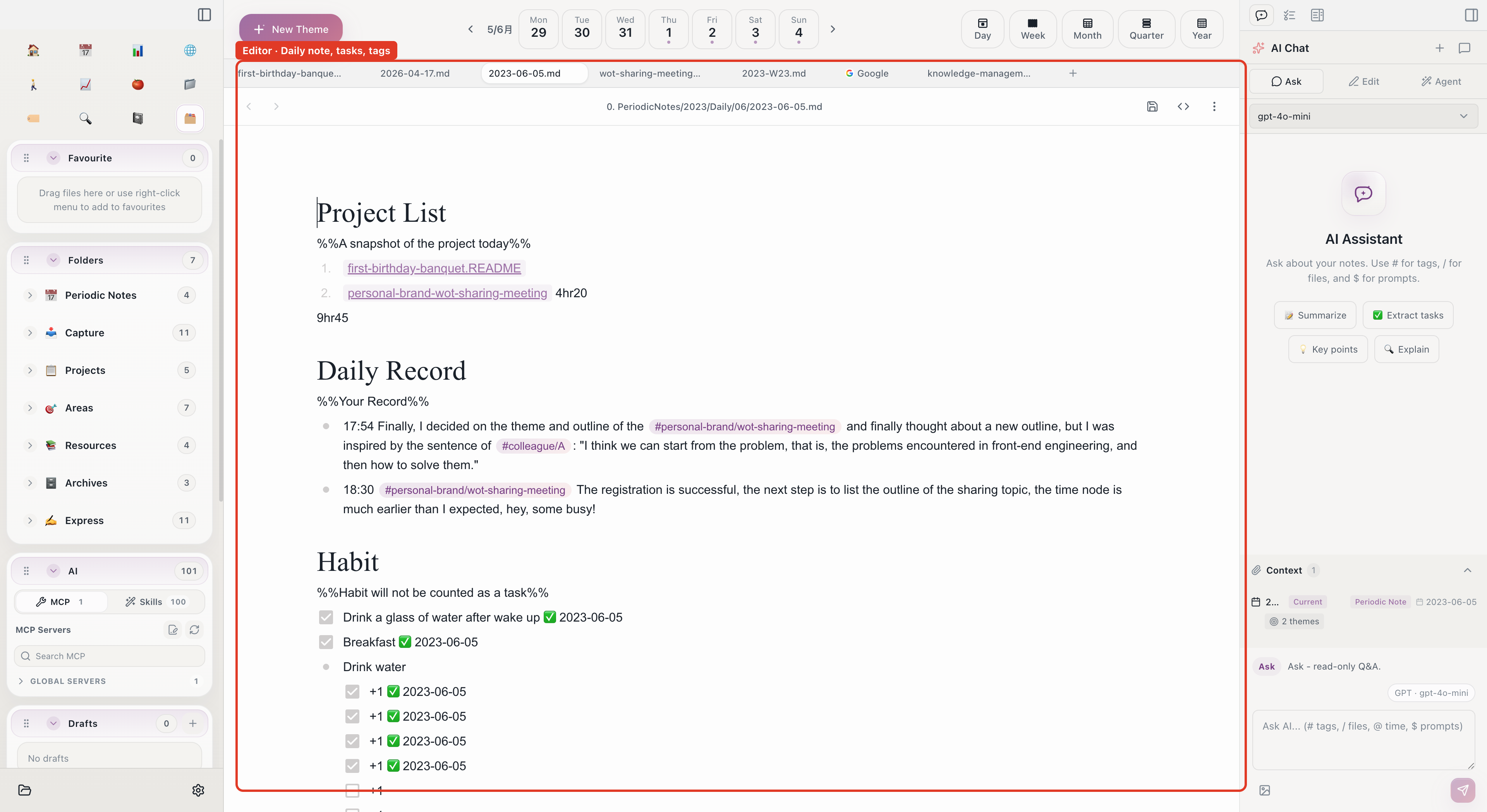
9:00 AM — Open Daily Note, Plan the Day
Launch Aino LifeOS and click "Today" in the left sidebar. The daily note is auto-created with your template structure.
Write down today's tasks:
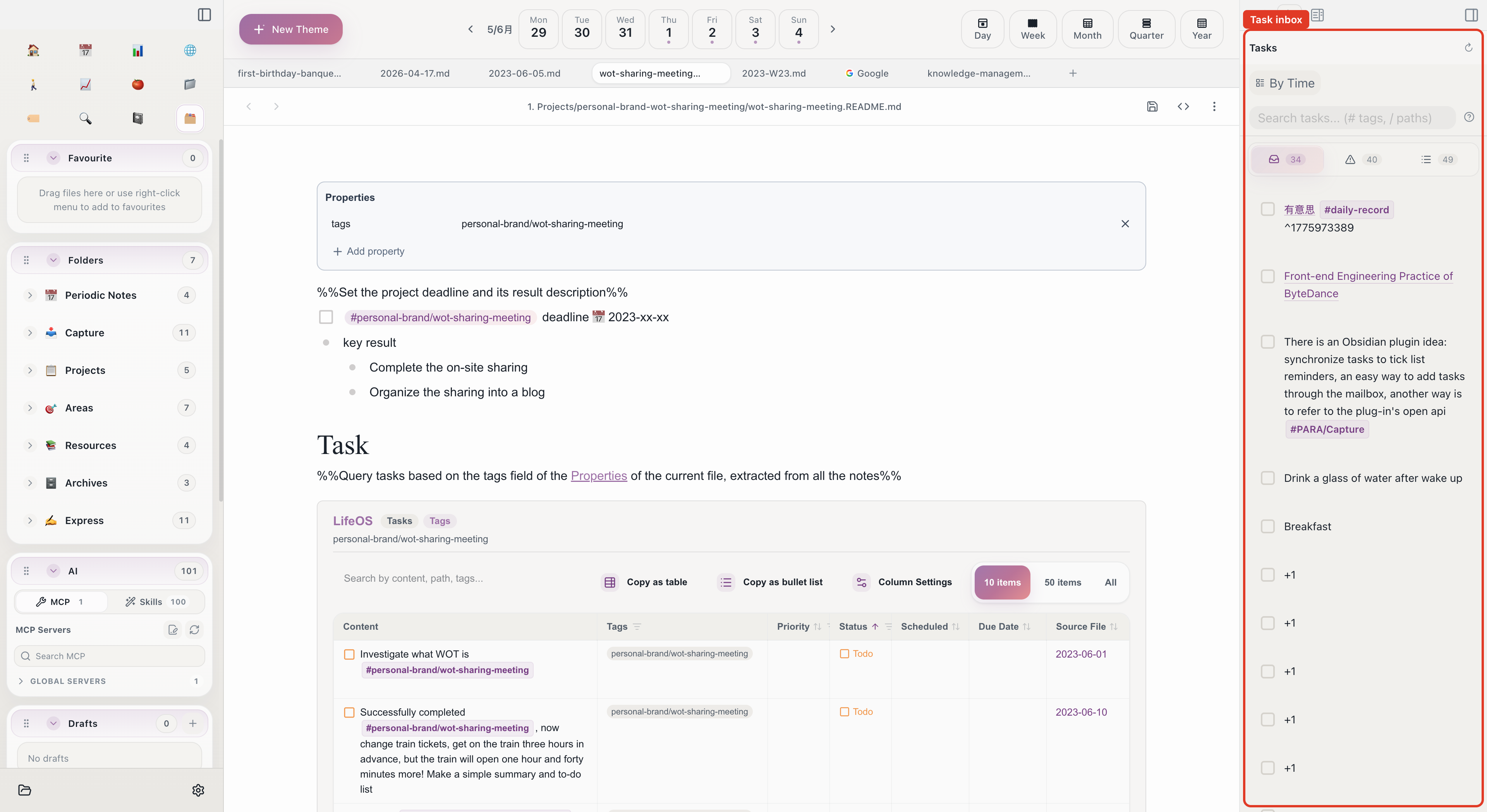
These - [ ] tasks automatically appear in the task inbox on the right.
9:15 AM — Prioritize in Task Inbox
Open the task inbox and drag the most important tasks onto the calendar time slots:
- "User feedback analysis report" → drag to 9:30-11:00
- "Code review" → drag to 14:00-15:00
- "Prepare review materials" → drag to 15:30-17:00
Now your calendar has today's time blocks. "Reply to client emails" stays in the inbox for spare moments.
9:30 AM — Focus with Pomodoro
Select "User feedback analysis report" from the task inbox and click the Pomodoro button:
- 25-minute countdown starts
- Focus on writing the report
- Chime rings → 5-minute break
- Start another Pomodoro
Completed Pomodoros are auto-recorded in your daily note with the task name and duration.
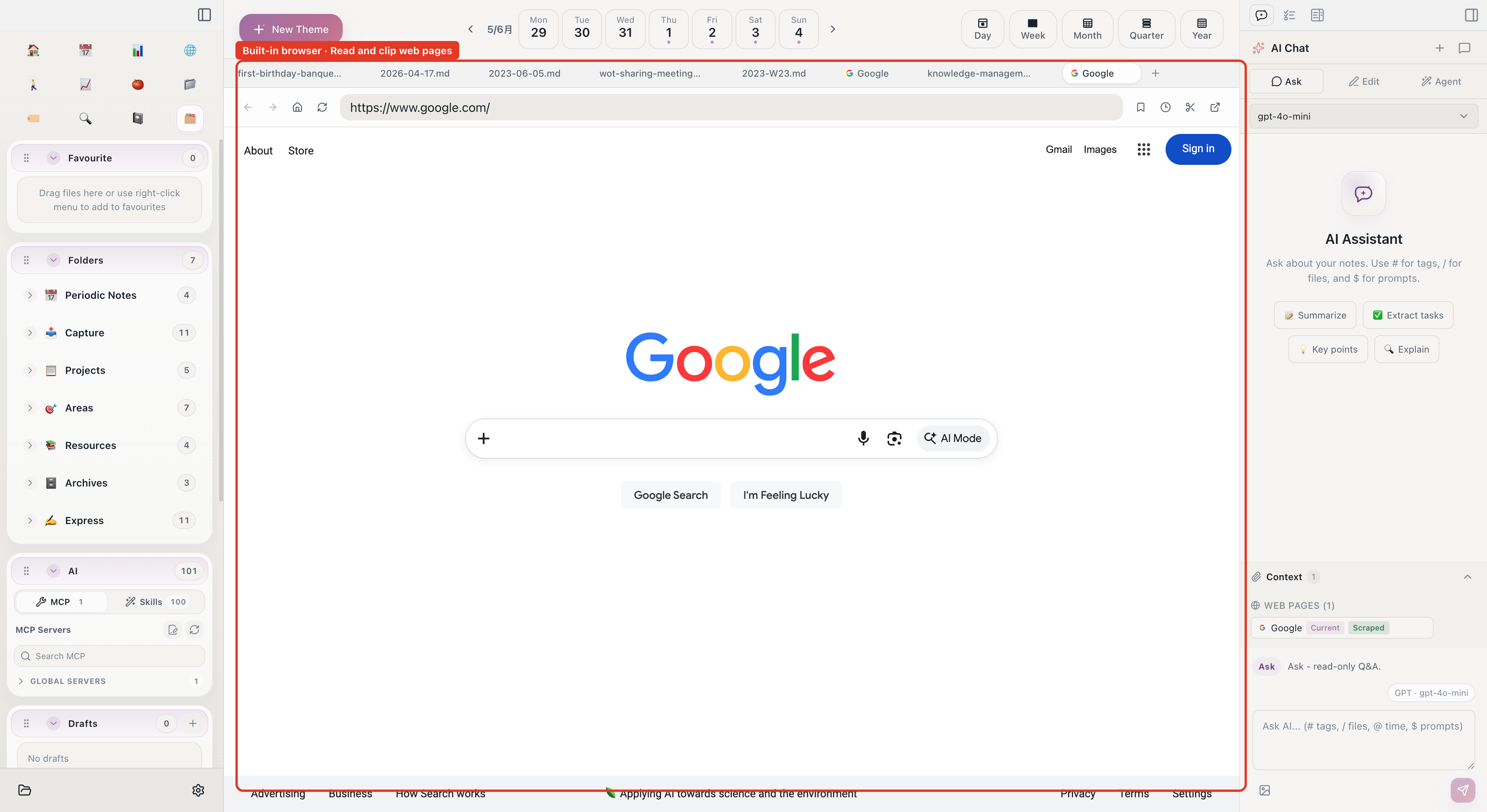
10:00 AM — Research with Built-in Browser
Need competitor data while writing the report. No need to switch to Chrome:
- Press
Cmd + Pto open the quick switcher - Type the competitor's URL — it opens in the built-in browser
- Find valuable data charts
- Click the clip button → save to daily note
Clipped content is appended to today's daily note in Markdown format. Organize later.
11:00 AM — AI Helps Summarize
Halfway through the report, you need to categorize 50 raw user feedback entries. Open AI Chat:
- Use
#to reference the feedback data note - Type: "Group these user feedback items by category and count each"
- AI analyzes and returns structured categorization
- Copy into your report
2:00 PM — Code Review
Open the built-in browser to the GitHub PR page. Read code diffs while taking notes in the editor:
3:30 PM — Prepare Review Materials
Need to review last week's accomplishments. Open the weekly note to see what was completed.
Use the AI agent to help:
- Open the AI Agent
- Type: "Based on my daily notes and project notes this week, create a work summary"
- AI reads related notes and generates a structured summary
Paste the summary into the review document, add next week's plan.
5:30 PM — Wrap Up Daily Note
Before the day ends, return to your daily note:
- Check off completed tasks
- [x] - Add insights and thoughts to the "Notes" section
- Check the task inbox — postpone unfinished items to tomorrow
5:45 PM — Habit Check-in
Record today's habit completion in your daily note:
Open the habit panel to see this week's streak — exercise has been 12 days straight.
Features Used in This Workflow
The key to this workflow: the daily note is the central hub. All information flows into the daily note (tasks, clips, Pomodoro records, habit check-ins), then flows out to various feature modules (task inbox, calendar, PARA categories).
Start with Aino
Turn this approach into your everyday workflow
Try Aino Desktop Pro free for 7 days, open an existing Markdown vault, or start with the complete example vault from your email.
- 7-day free trial
- Portable Markdown
- Complete example vault by email