
Project Lifecycle
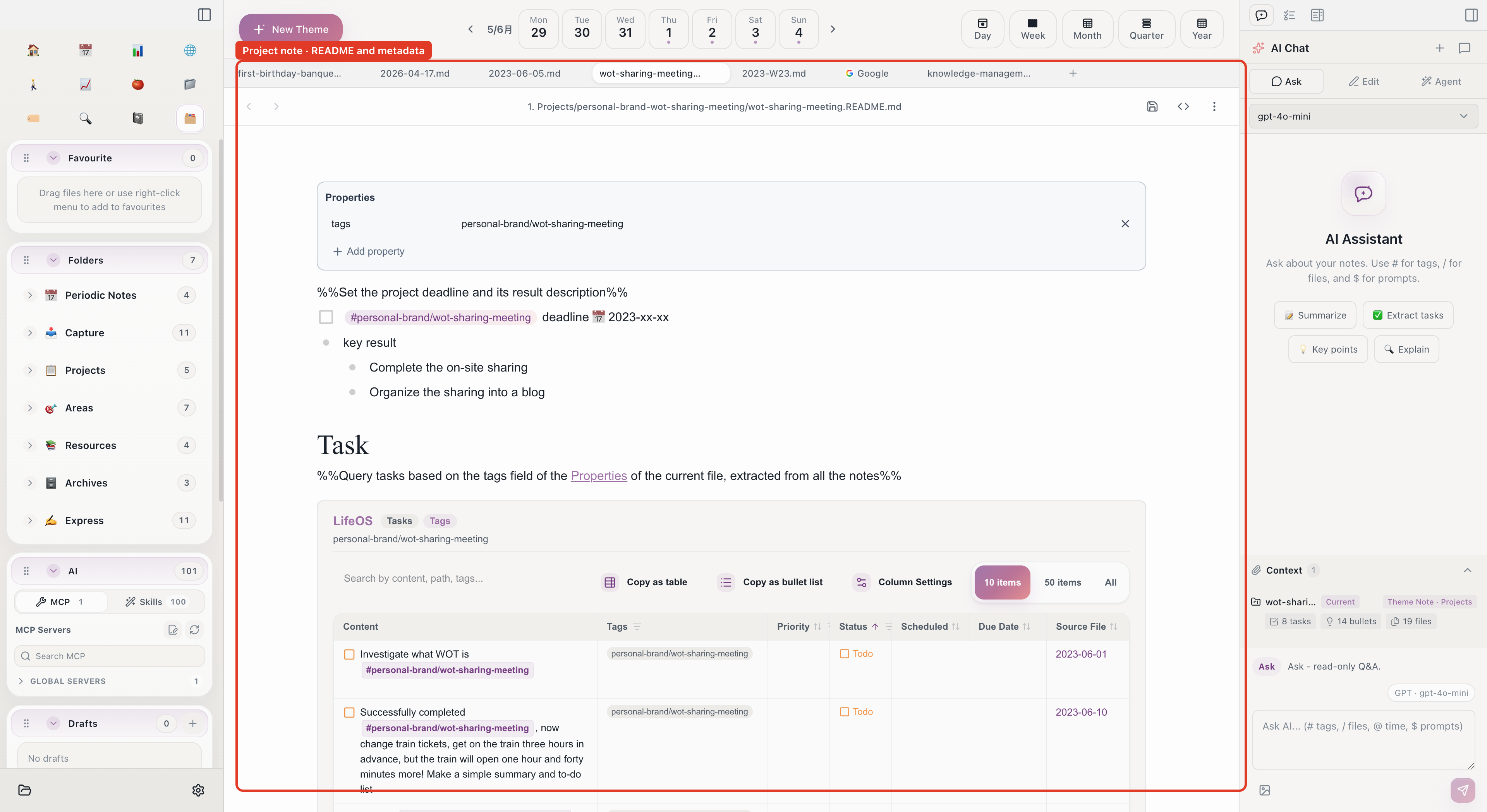
This article describes how to manage a project's complete lifecycle in Aino LifeOS, from creation to archiving.
Phase 1: Create the Project
Create a Theme Note
In Aino's Create Theme form, enter #工作/产品上线 and select Project. Aino creates 1. 项目/工作-产品上线/ directly under the PARA "1. 项目" folder: / in the tag becomes -, flattening the theme directory to one level. This flat structure is recommended; do not manually create a nested path such as 工作/产品上线/. It lets a theme move between Projects, Areas, Resources, and Archives by moving one folder, without reorganizing parent directories. An index file will be automatically generated in the project folder (or created from a Template.md template).
Set a Deadline
In the project index file, mark the project deadline with a date-tagged task:
Tasks with a 📅 date marker will automatically appear on the corresponding date in the calendar and remind you via the task inbox when due.
Set the Theme Tag
Determine the project's theme tag, such as #工作/产品上线. When recording content related to this project in your daily notes, just include this tag.
Phase 2: Execute the Project
Record in Daily Notes
Each day, in the "Daily Records" area of your daily note, associate entries with the project using the theme tag:
These tagged tasks and fleeting notes will be automatically indexed to the project's Theme Note. See Connection for details.
Project Time Tracking
The project list in the daily note template automatically lists currently active projects. Record time spent on the corresponding project for the day:
The ProjectListByTime code block at the bottom of the daily note automatically calculates the time proportion for each project. The same code block in weekly and monthly notes aggregates data over longer periods.
Use the Pomodoro Timer
Select a project task from the task inbox and start the Pomodoro timer to enter focus mode. Completed Pomodoro records are automatically written to the daily note.
Phase 3: Review Progress
Weekly Review
Open the weekly note each week and check the review area for this week's task completion on the project:
TaskRecordListByTime-- All tasks recorded this weekTaskDoneListByTime-- Tasks completed this week
Compare the two lists to assess whether project progress meets expectations.
Monthly Review
Check longer time-horizon progress in the monthly note. ProjectListByTime shows total time spent per project this month, helping you judge whether time allocation is reasonable.
If project progress is behind, adjust priorities in next month's plan. See Review for details.
Phase 4: Archive the Project
After the project is completed:
- Confirm all tasks are completed (or marked as cancelled) in the project index file
- Move the entire project folder from
1. 项目/to4. 存档/ - The project disappears from the home view and active project list
- All documents, decision records, and historical tasks are preserved and still accessible via search and tags
Archiving is not deleting. Archived projects are simply hidden from daily views; all content is fully preserved. You can find them at any time through search or by browsing the archive folder.
Project Lifecycle Summary
Related Topics
- Connection -- How tags link daily notes and Theme Notes together
- Time Management -- How to use time tracking and Pomodoro to manage time
- How to Review -- Specific operational guide for each level of review
- Goal Management -- How to break down projects from goals