
AI Control of the Current Interface (Experimental)
Aino can let the right-side AI Agent control the current desktop app the way a user would. When enabled, AI can observe the current Aino window, click buttons, switch files, type in the editor, and operate web pages opened in the built-in browser.
This is experimental and off by default. It performs real clicks and typing in the current Aino Desktop window. Enable it only when you want AI to operate the visible app interface.
When to Use It
File tools are better for direct Markdown reads and edits. AI control of the current interface is useful when the task must go through the UI:
- Open a note or folder from the left sidebar
- Click into the middle Markdown editor, type text, or switch editor modes
- Click buttons and wait for state changes inside the built-in browser
- Toggle tasks or switch panels in the right sidebar
- Ask AI to verify visible UI text after each operation
If you only need to create, search, or batch-edit notes, start with Edit / Agent mode in AI Smart Chat. Use AI control of the current interface when the visible interface state matters.
Enable It
- Open Settings → Experiments
- Turn on Allow AI to control the current interface (experimental)
- Aino asks whether to load the
aino-desktop-automationSkill - The switch turns on only after you confirm
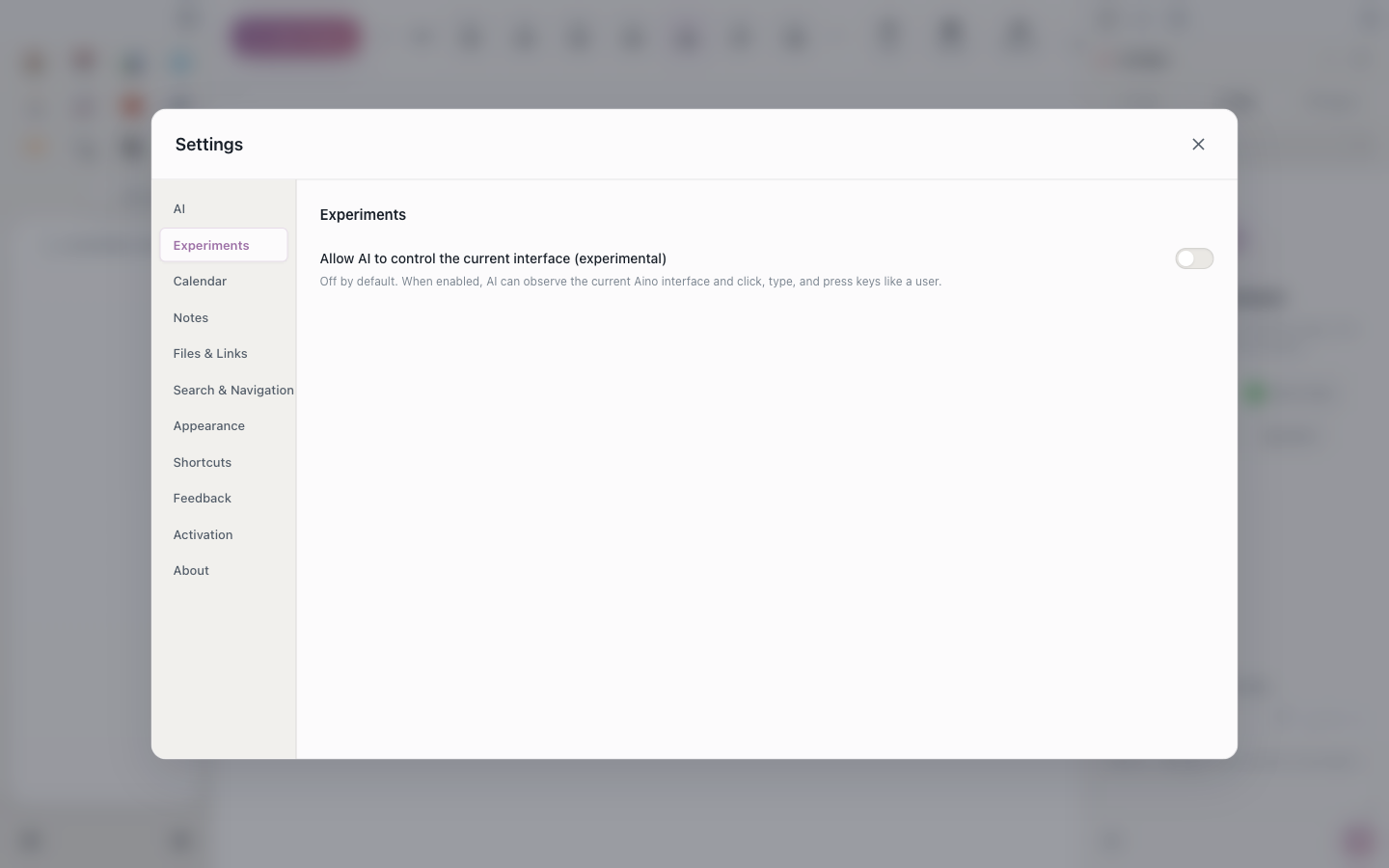
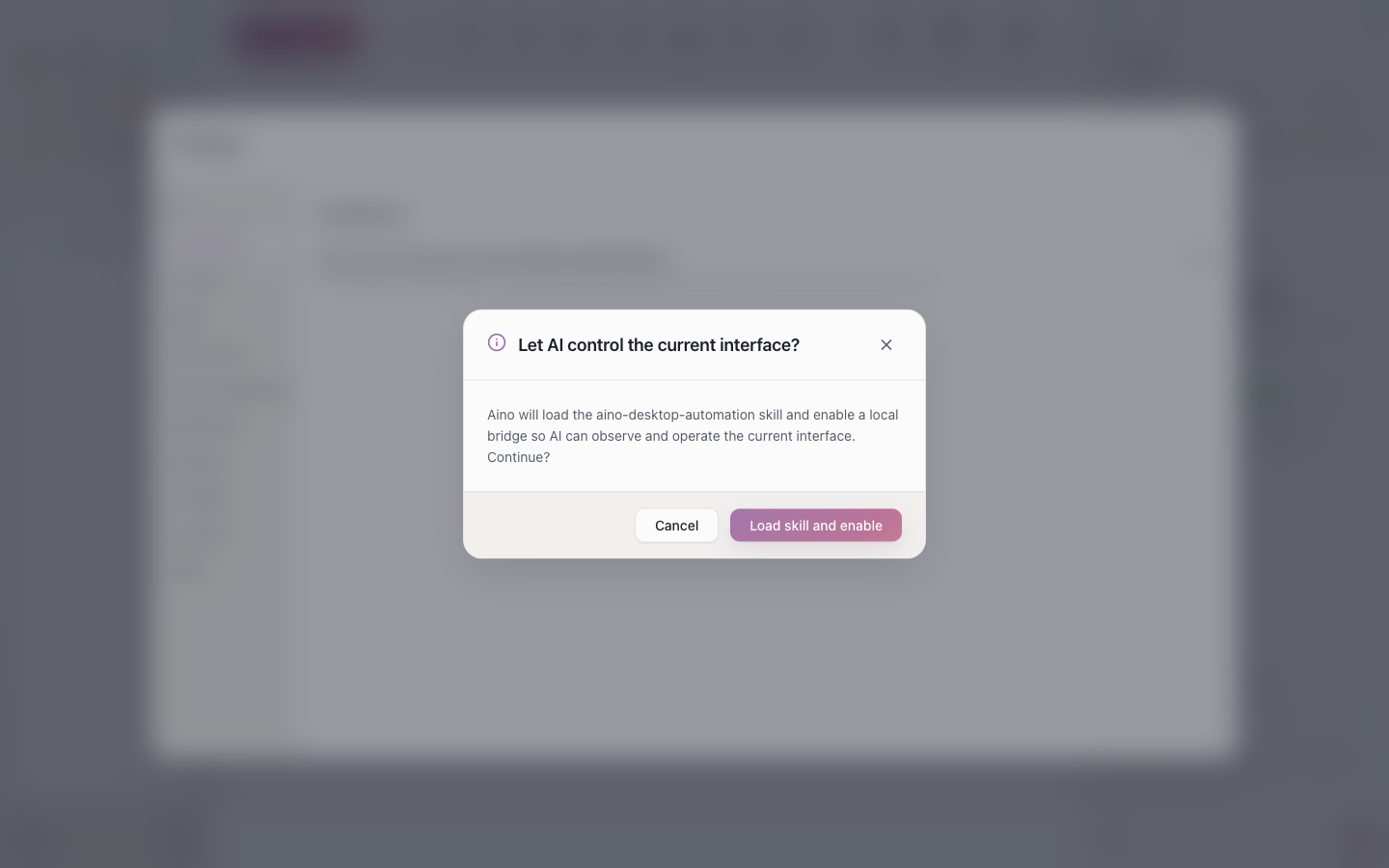
After that, the right-side AI Agent can use page-control tools to observe the current page, click, type, press keys, and wait for text to appear.
What It Can Control
This capability targets the currently running Aino Desktop window:
The AI usually observes a page snapshot first, then targets visible text, buttons, fields, or stable UI identifiers before clicking or typing.
Prompt Examples
In right-side Agent mode, describe the desired outcome:
For a page in the built-in browser:
Relationship to Permission Switches
AI control of the current interface controls the visible interface. It does not replace other safety settings:
- Allow write / update tools controls ordinary-model and MCP write tools
- Allow delete tools controls delete-like MCP tools
- AI control of the current interface lives in Settings → Experiments and controls whether AI can operate the current Aino window
If AI clicks a delete or submit button in the UI, that is still a real UI action. For sensitive operations, ask AI to explain its plan and wait for your confirmation first.
Use from CLI Agents
After this switch is enabled, local CLI agents can use the same local bridge through the aino-desktop-automation Skill. For example:
If the bridge is disabled, the CLI reports that the local bridge or state file cannot be found. Enable it again in Settings → Experiments.
Limits
- This is experimental; UI layout changes may require the AI to observe and target again
- It is designed for the current visible window, not background batch processing
- For large file edits, prefer Edit / Agent file tools with diff review
Related
- AI Smart Chat — Ask / Edit / Agent modes
- MCP Server Integration — extend AI with external tools
- LifeOS Skill — help external agents understand LifeOS vaults
Try Aino AI now
Put AI to work inside your knowledge base
Try Aino Desktop Pro free for 7 days, open a local Markdown vault, and start with a question, a summary, or one reviewable agent task.
- 7-day free trial
- Local Markdown
- Reviewable results