
Skill
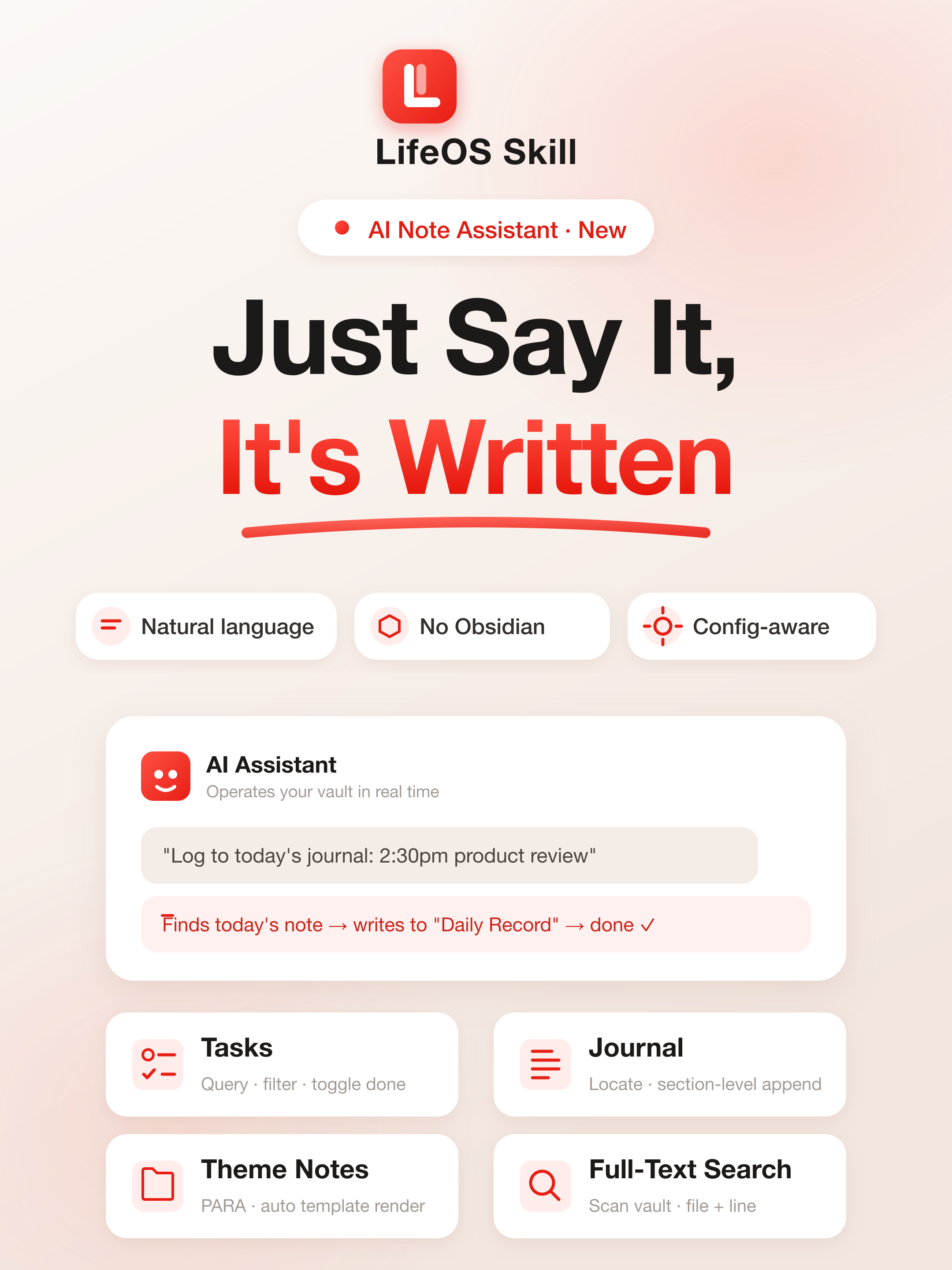
I wrote a skill for LifeOS, and now AI can help manage my notes.
I have used LifeOS for more than a year, and I still love the PARA + periodic notes system.
But one problem kept getting in the way: the friction of recording was too high.
An idea appears → open Obsidian or Aino → go to today's daily note → scroll to "Daily Record" → type → close it. Those few steps are enough for countless ideas to disappear into "I'll skip it this time."
So last month I built an AI skill for LifeOS.
What is it?
In one sentence: after installing the LifeOS Skill Bundle, sidebar AI, Claude Code, and Codex learn how to operate your LifeOS knowledge base.
The bundle contains five independently triggered Skills. lifeos owns shared configuration and safety rules; lifeos-today handles today and periodic reviews; lifeos-board handles Workflow/PARA boards; lifeos-onboarding handles setup and migration; and lifeos-content handles notes, attachments, AI Wiki, and dashboards. The agent loads only the domain needed for the current request.
It knows what your PARA folders are called, how your daily-note paths are formatted, where your templates live, and what section headings you use. It reads all of that from your real LifeOS plugin and Aino configuration automatically, so you do not have to explain it manually.
You describe what you want in natural language, and the AI executes it.
When the current local folder does not contain the project-level LifeOS Skill Bundle, Aino blocks the question and shows an install button. One click installs all five Skills. The original question then continues automatically in the same turn. You do not need to refresh the sidebar, create a new chat, or restart Aino.
What can it do?
Quick capture in one sentence
"Log to today's journal: 2:30pm product requirements review."
The AI locates today's note, finds the "Daily Record" section, inserts the line, and finishes. You do not even need to open Aino or Obsidian.
Query and complete tasks
"What are my tasks today?"
"Mark the quarterly report task as done."
The AI can return the task list or directly change - [ ] to - [x].
Create project notes with templates
"Create a project called Q3 Product Redesign."
The AI finds your project template, renders {{snapshot:Project}}, injects the theme tag, and creates the index file. The result matches what you would create manually.
Full-text search
"Where did I write about superlinear returns?"
The AI scans the vault and returns the file and line number.
Weekly and monthly reviews
"Add a review paragraph to this week's weekly note."
The AI locates the correct file and writes the content in the right place.
Build or take over a knowledge base
"Help me turn this folder into a PARA knowledge base."
Aino can start from an empty folder or take over any local Markdown folder. It does not need to be an Obsidian vault. The folder may also contain images, PDF, DOC, PPT, audio, and video attachments.
The Skill inspects first, recommends Memos, IPO, GTD, PARA, or OPC from easiest to hardest, or offers Topic-only mode when you do not want to learn a formal framework. It previews the folder structure, and asks for confirmation before creating anything. For an existing folder, it proposes classification in small batches. Every suggestion shows a destination, reason, and confidence; files move only after confirmation.
- Memos uses periodic notes only and is the capture-first choice for daily bullets and tasks. It has no classification destinations, so the Skill does not move historical material into daily notes.
- IPO uses Input, Themes, Output, and Archive. Topic-only mode is a plain-language name for IPO, not another directory structure.
- GTD keeps Inbox as its own clarification stage, not as a universal dump folder.
- PARA separates Capture and Express; old material that cannot be classified reliably can go to Archive.
- OPC uses the separate OPC Skill and operating model.
Binary attachments are preserved and inventoried. Aino does not claim to understand DOC, PPT, audio, or video contents unless another tool actually extracts them. Moves that could break Markdown links or attachment references are left in place for review.
Why is it useful?
Because it does not think for you. It executes for you.
Tone, tag choice, and whether something is worth recording are still your decisions. The skill removes the operational friction: opening the app, finding the folder, finding the right section, and writing the content.
Recording changes from an interruption into a side path: keep doing your work, say one sentence, and let AI write it down.
How to start
In Aino Desktop
- Open any local folder.
- Open sidebar AI.
- If prompted, click Install and continue.
- Ask:
The Skill guides template selection, previews changes, and can help classify existing files after you approve each batch.
Build a knowledge base from scratch
Use this path for an empty folder or a folder with only a few temporary files and no established structure.
1. Explain what the knowledge base is for
Open the folder and sidebar AI, install the LifeOS Skill, and ask:
The recommendation is based on how you expect to use the folder:
Topic-only mode is for people who want to organize by topic without first learning a knowledge-management method. It maps directly to IPO, so it still creates Input, Themes, Output, and Archive rather than a fourth template. You can ask for it directly:
2. Choose minimal or full
After selecting a template, specify its density and language:
- Minimal creates the working structure, settings, task entry point, and starter documentation.
- Full also creates daily, weekly, monthly, quarterly, and yearly note templates.
Memos minimal still creates its essential empty Daily template. Memos full adds weekly-to-yearly task and record queries. A Memos vault can keep every old daily note while growing into IPO, GTD, or PARA, but templates are not one-click skins and Blank Vault settings must not overwrite working settings.
Migrate from one template to another
If the vault already uses Memos, IPO, GTD, or PARA, ask the agent directly:
The Skill records the source, target, and scope in a resumable migration record.
By default, the agent preserves periodic-note paths, formats, custom templates,
headers, locale, and task statuses. It shows and merges only fields required by
the target structure; activation, AI, calendar, and sync settings never enter
the migration record. Material is re-evaluated by meaning rather than old folder
name. Templates, generated query pages, .AI.md, and HTML dashboards are not
bulk-classified as ordinary material.
Every batch checks paths, collisions, Markdown links, Wikilinks, and attachment
references. Unsafe files remain in place or are recorded for review. The agent
updates .lifeos/template-profile.json only after target entry points, task and
review queries, links, and the selected scope have been verified. Migrations to
OPC use the separate OPC Skill.
An English PARA plan includes:
Capture is for newly arrived, unprocessed material. Express is for your own drafts, synthesis, and work. Archive is the fallback for old material that cannot be classified reliably.
3. Review and confirm the plan
The plan separates paths that will be created, paths that already exist, and conflicts. When it looks correct, say:
The Skill verifies the template, LifeOS settings, and project Skill afterward. Applying the same plan again is idempotent and does not duplicate files.
4. Create the first real entry
Do not fill the structure with fictional examples. Start with real work:
The setup is complete when you know the primary entry point and at least one real note or task exists there.
Migrate an existing knowledge base or material folder
Use this path for existing Markdown notes, exports from another tool, or a normal local folder that mixes notes with images, PDF, DOC, PPT, audio, or video. Keep a backup of the folder before a large migration.
1. Inventory without moving anything
The Skill reads Markdown text and records only the path, filename, size, and media type of binary attachments. It does not claim to understand attachment contents unless another extraction tool has supplied them.
2. Select the target structure
Ask for a recommendation or choose one directly:
Creating the LifeOS structure does not automatically relocate old files. Existing same-named files remain in place and are reported as conflicts.
3. Classify scattered files in bounded batches
Suggestions use high, medium, or low confidence. Images, video, DOC, PPT, and other attachments can be judged only from filenames, current paths, media types, and adjacent Markdown references.
4. Confirm only safe moves
Approve individual items or a subset:
Only explicitly confirmed items that pass validation are moved:
- An existing or case-equivalent target blocks the move.
- Incoming Markdown references or outgoing relative links block the move.
- A destination outside the selected template or current folder is rejected.
- Uncertain legacy material may be confirmed for Archive or left in place.
Request the next batch until every remaining file is classified, deliberately retained, or archived. Finish by asking for a summary of moved, unconfirmed, conflicted, and remaining items.
Migrate pasted text
When pasting material, tell the Skill what it represents:
For IPO, the equivalent destinations are Input, Themes, and Output.
In another skill-aware agent
Install the Skill:
Then tell your agent:
It will understand the shape of your note system, and you can manage your notes conversationally from there.
Links
Try Aino AI now
Put AI to work inside your knowledge base
Try Aino Desktop Pro free for 7 days, open a local Markdown vault, and start with a question, a summary, or one reviewable agent task.
- 7-day free trial
- Local Markdown
- Reviewable results