
Periodic Notes
Periodic notes help you build rhythmic recording habits -- daily notes capture the day, weekly notes review the week, monthly notes summarize the month, quarterly notes set goals, yearly notes plan direction.
Where to Edit in the App
- Aino Desktop: Open a daily, weekly, monthly, quarterly, or yearly note, then click Edit Template in the top toolbar. You can also open Settings → Periodic Notes → Periodic Notes and select the period type.
- Obsidian: Open the periodic template file directly in the current vault. The example vault usually stores templates in
0. 周期笔记/Templates/; custom vaults follow the template path shown in Aino settings. - What to check first: Built-in example templates do not include habit check-ins by default. To track habits, start with Habit Statistics. To change variables such as
{{date}}or{{snapshot:Project}}, read Template Syntax.
Daily Notes
Create a Daily Note
Aino LifeOS auto-creates a daily note each day. Click the "Today's Daily Note" shortcut in the left sidebar to open it.
To save a thought or task without opening the journal first, use Quick Capture. It writes directly under Daily Record in today’s journal.
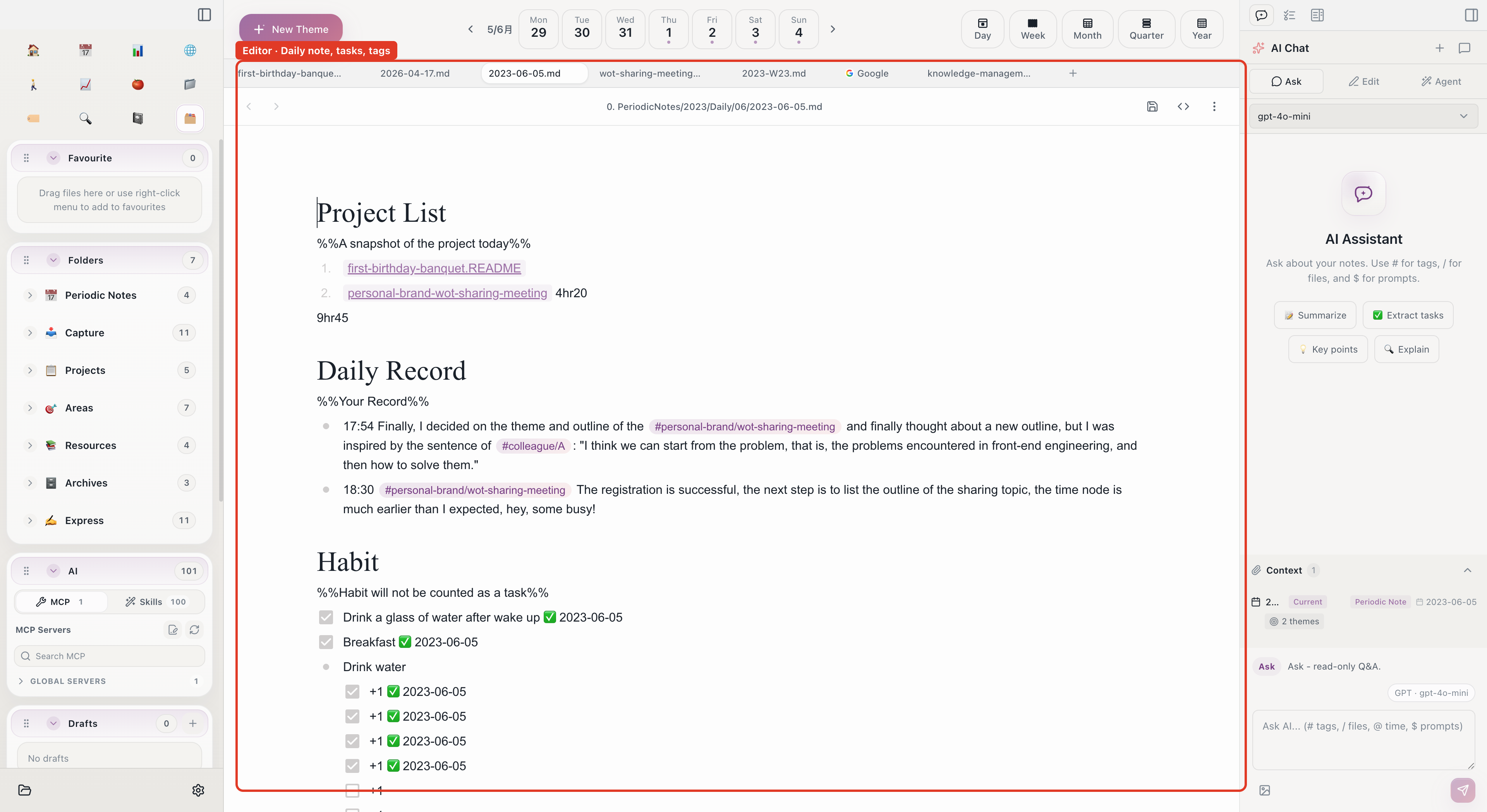
Here is what an opened daily note looks like -- a snapshot of today's project time at the top, followed by a timestamped daily log with topic tags:
Daily Note Template
Here is a daily note template without habit check-ins. Built-in example vaults use this lighter structure by default:
Key modules in the template:
Daily notes don't need to be long. 3-5 bullet points are enough. The key is recording consistently every day, using theme tags to link entries to corresponding theme notes.
When you need habit tracking, avoid copying a long generic checklist. Enable the feature first, then add only the habits you actually want to track. See Habit Statistics for the complete setup.
Weekly Notes
Weekly Note Template
The core of weekly notes is "plan tasks" and "review progress." Here is the example template:
Key design of weekly notes:
- Key projects -- Auto-aggregates time data for each project during the week, showing where time was spent
- Role-based planning -- Plans tasks by life roles (employee, spouse, parent, etc.) to ensure balance across all aspects of life
- Review section --
TaskRecordListByTimeauto-collects all tasks from daily notes that week;TaskDoneListByTimelists completed ones
Monthly Notes
Monthly notes start from quarterly goals and break them down into monthly tasks:
Quarterly Notes
Quarterly notes start from yearly goals and set quarterly objectives:
Note that quarterly notes use {{snapshot:Area}} to auto-list current area snapshots, helping you set quarterly goals from an area perspective. See Template Syntax for more variables.
Yearly Notes
Yearly notes focus on the longest-term direction:
Periodic Note Hierarchy
From yearly to daily, predictability increases:
All templates can be customized to your needs. Template files are stored by default in the 0. 周期笔记/Templates/ directory, and you can change the template path in settings.
Auto-Recording to Daily Notes
The following features automatically write content to your daily notes:
- Pomodoro -- Completed pomodoro records (task name, duration)
- Clipping -- Web content saved from the built-in browser
- Habits -- Habit completion check-ins
Related
- Theme Notes -- Periodic notes provide the time dimension; theme notes provide the topic dimension
- Task Management -- Tasks in daily notes are auto-collected
- Pomodoro Timer -- Work records auto-written to daily notes
- Connection -- Learn how periodic notes and theme notes are linked via tags