
MCP Server Integration
Model Context Protocol (MCP) lets your AI assistant call external tools -- query databases, search the web, operate files. This guide shows how to configure and use MCP in Aino LifeOS.
Step 1: Understand Configuration Levels
Aino LifeOS supports three MCP configuration levels, from highest to lowest priority:
Step 2: Add Your First MCP Server
Option A: Configure in Your Vault (Recommended for Beginners)
Create a .mcp.json file in your vault root directory:
Save and restart Aino LifeOS -- the server loads automatically.
Option B: User-Level Configuration
To make a tool available across all vaults, edit ~/.claude/mcp.json:
If you already use Claude Code, your ~/.claude/mcp.json configuration is automatically recognized by Aino LifeOS -- no duplicate setup needed. The legacy ~/.claude.json is still supported for backward compatibility, but we recommend migrating to ~/.claude/mcp.json.
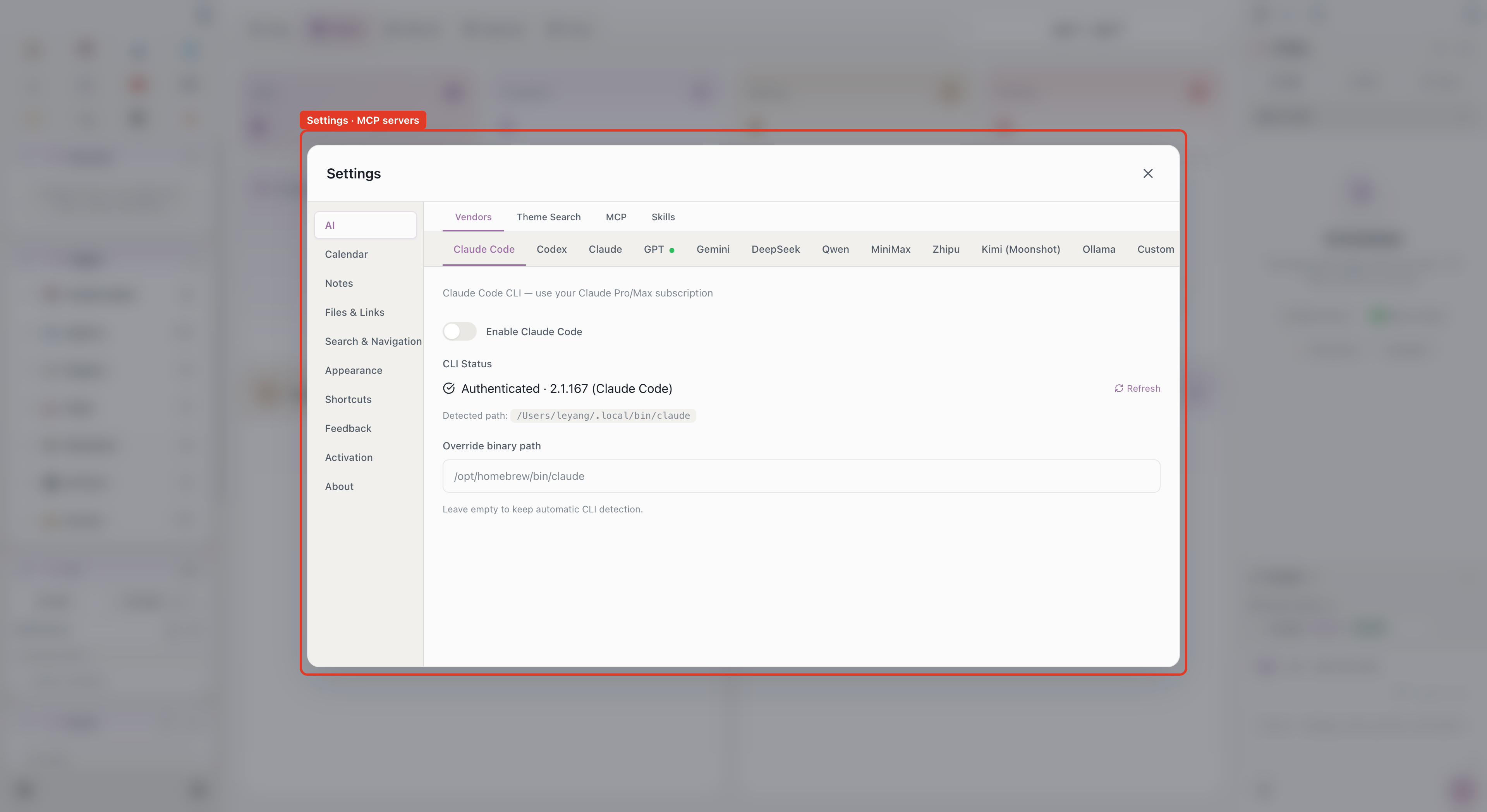
User-level and app-level MCP servers are not exposed to ordinary models by default. Turn on Global MCP servers in Settings → AI → MCP when you want Aino to start and show those servers.
Option C: App-Level Configuration
Edit <userData>/mcp.json (good for team-wide configs):
Step 3: Verify Server Status
After configuration, open Aino LifeOS:
- Servers are auto-discovered and loaded at startup
- Check the MCP management panel -- status should show "Running"
- Click a server name to see its tool list
- In the AI chat tool panel, temporarily enable or disable a whole server or individual tools
If a server crashes, Aino LifeOS auto-restarts it.
Step 4: Use MCP Tools in AI Chat
Once MCP servers are loaded, AI chat automatically gains these tool capabilities:
- Open AI Smart Chat
- Ask normally -- AI will automatically invoke MCP tools as needed
- For example, with
web-searchconfigured, ask: "Search for the latest React 19 changes"
The AI calls the search tool, gets results, and replies with organized information.
Write and Delete Permissions
MCP tools have extra permission controls so ordinary models do not mutate data unexpectedly:
- Settings → AI → Permissions → Allow write / update tools enables MCP tools whose names look like write, update, or create operations
- Settings → AI → Permissions → Allow delete tools enables MCP tools whose names look like delete/remove operations
These switches do not replace Claude Code / Codex CLI permission systems, but they do control which MCP tools are exposed to Aino's ordinary-model chat.
Transport Protocols
Stdio (Recommended)
Runs as a subprocess, ideal for local tools:
- Fast startup, low latency
- No network configuration needed
- Processes auto-managed by Aino LifeOS
HTTP
Connect to remote MCP servers, ideal for team sharing:
- CORS support
- Customizable via middleware
Built-in MCP HTTP Server
Aino LifeOS includes a built-in MCP HTTP server (default port 1479), allowing external tools to connect inbound. Uses include:
- Browser extension connecting to Aino LifeOS via HTTP
- Other apps integrating with your note data
- Custom automation workflows
Common Configuration Examples
Filesystem Access
Web Search
To add multiple servers, list them side by side in the mcpServers object, each with a unique key.
Related
- AI Smart Chat -- MCP tools are automatically called by AI during chat
Try Aino AI now
Put AI to work inside your knowledge base
Try Aino Desktop Pro free for 7 days, open a local Markdown vault, and start with a question, a summary, or one reviewable agent task.
- 7-day free trial
- Local Markdown
- Reviewable results