
IPO Example Vault
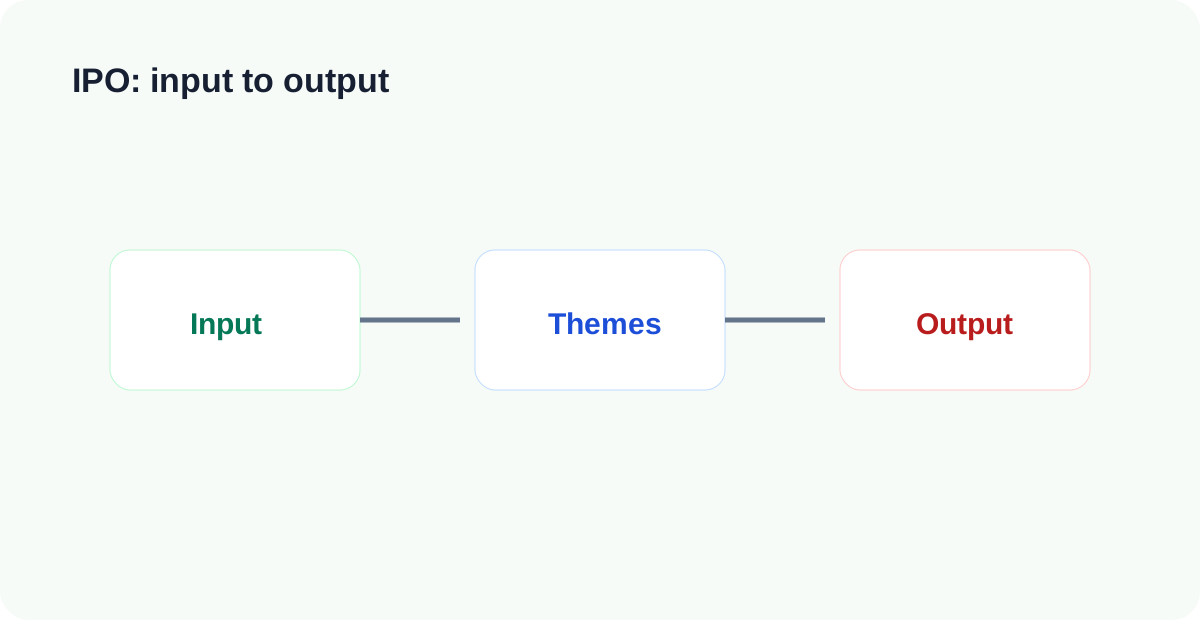
LifeOS Pro IPO Vault is for knowledge work as a production line: collect input, process it through themes, and turn it into output.
Start With the Whole Vault
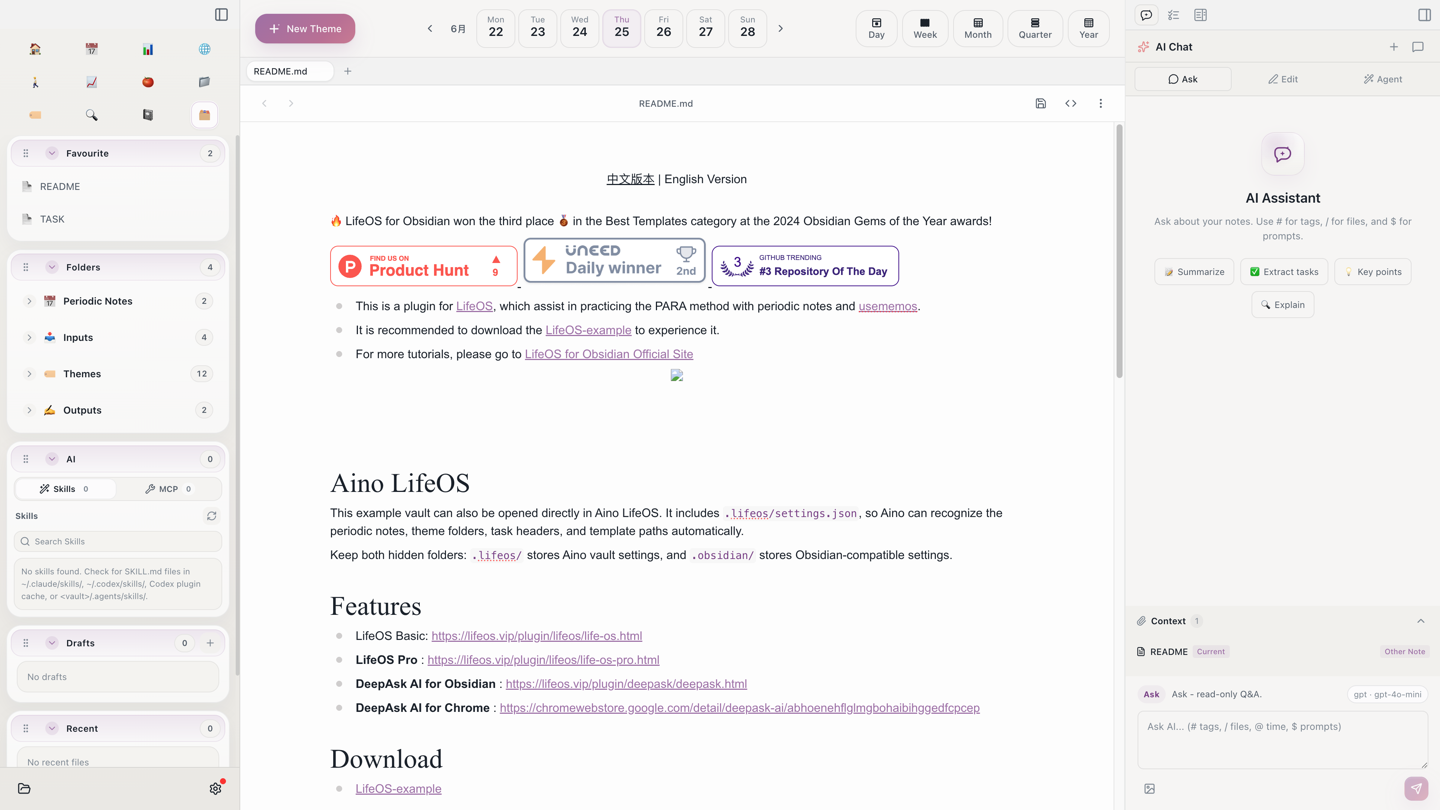
After opening the vault, start from the pinned README and TASK notes. The left Library view exposes the full IPO pipeline: 1. Input/ stores raw material, 2. Themes/ handles judgment and processing, and 3. Output/ stores publishable or deliverable work.
Open a Theme
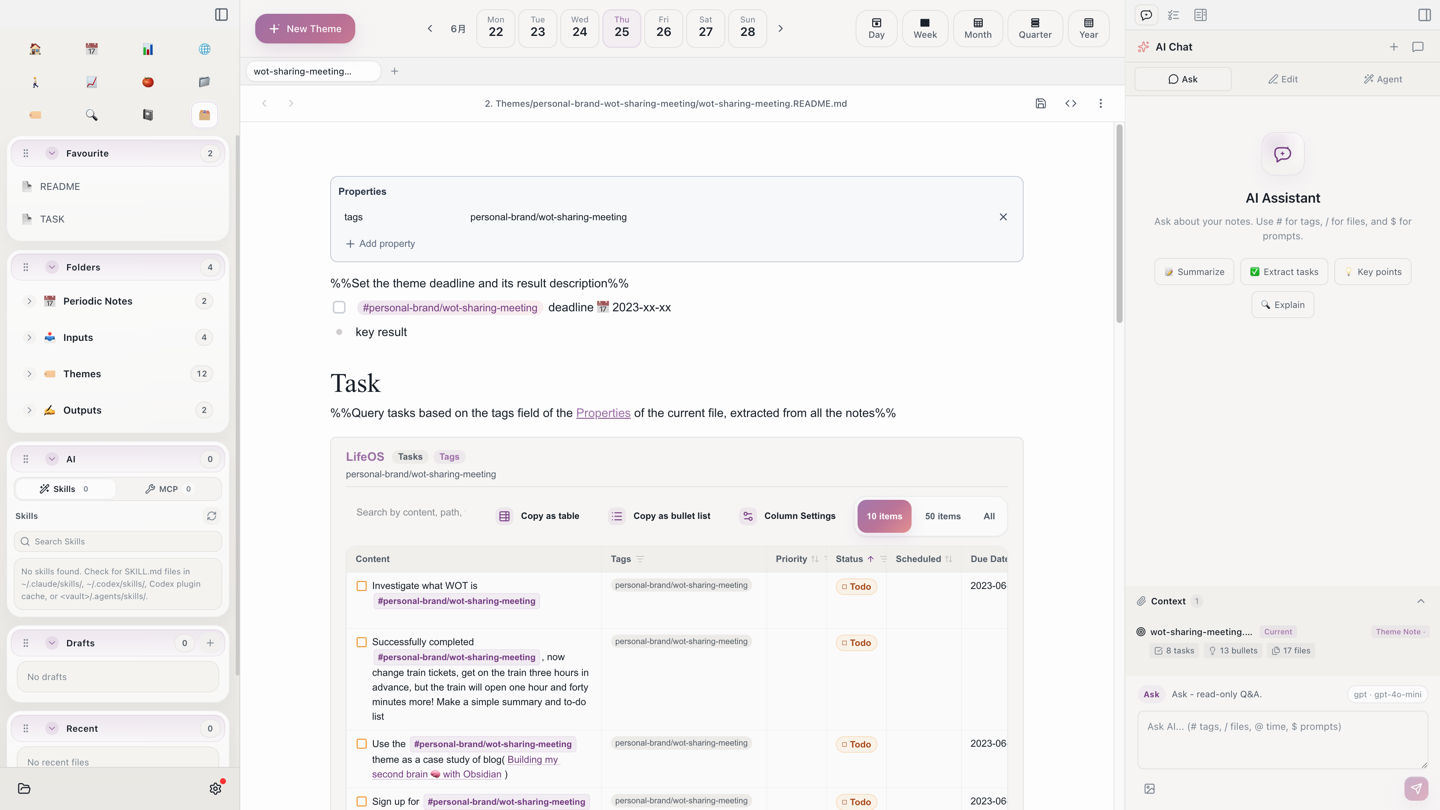
2. Themes/personal-brand-wot-sharing-meeting/ shows how material moves into a processing layer. The theme index gathers context and decisions, while outlines and draft notes can later flow into output. In day-to-day use, avoid turning every input into a final artifact immediately; let themes do the thinking work first.
Run It in 15 Minutes
- Create
Aino User Feedback - Example Vault Onboarding.mdunder1. Input/. - Add three feedback points: users do not know which template to choose, how to use AI, or where output should live.
- Create
Example Vault Onboarding Experience.mdunder2. Themes/. - Link the input to the theme and write one judgment: users need scenario-based template choice.
- Create
Aino Example Vault Selection Guide.mdunder3. Output/. - Ask the right-side AI panel to generate an outline from the input and theme.
What to Read Next
- Theme Notes — Use themes as the processing layer between input and output.
- Connection — Link input, themes, and output with tags and wikilinks.
- Retrieval — Find material through index files, tags, and search.
- Built-in Browser and Clipping — Capture web material directly into the input layer.
- AI Chat — Generate outlines from input and theme context.
Start with Aino
Turn this approach into your everyday workflow
Try Aino Desktop Pro free for 7 days, open an existing Markdown vault, or start with the complete example vault from your email.
- 7-day free trial
- Portable Markdown
- Complete example vault by email