
AI Organize (Experimental)
AI Organize lets you select notes or periodic records first, then hand that scope to the right-sidebar AI for an organization plan. Selecting a candidate does not modify the file directly.
AI Organize is experimental and enabled by default. You can hide its upper-left entry under Settings → Experiments. Existing organize conversations are preserved.
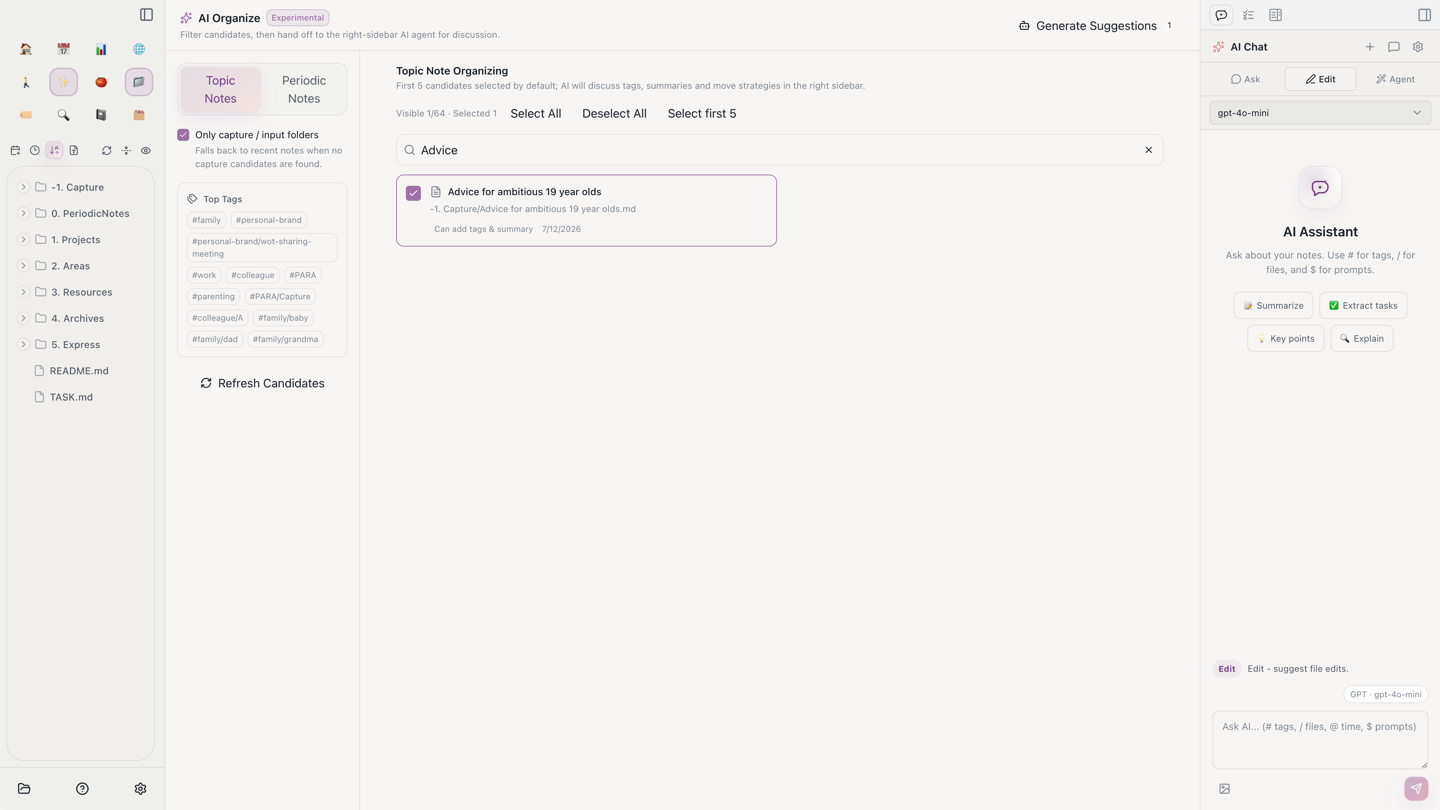
Two Organization Modes
Topic Notes selects the first five candidates by default. With Only capture / input folders enabled, Aino prioritizes configured capture folders and falls back to recent notes only when no candidates are found.
Periodic Notes can scan today, yesterday, the last 7 or 30 days, this week, last week, or this month. Narrow the result further to bullets, open tasks, completed tasks, tagged records, or linked records.
Complete an AI Organize Run
- Click AI Organize · Experimental in the upper-left navigation.
- Choose Topic Notes or Periodic Notes.
- Narrow the scope with folders, tags, dates, record types, and search.
- Select items individually or use Select All, Deselect All, and Select first 5.
- Click Generate Suggestions.
Aino creates a new conversation in the right sidebar and immediately sends an organization request containing the selected content. Ask AI for tags, summaries, merge suggestions, or move strategies before deciding whether it may edit files.
What the Selection Means
The selection is a snapshot for the current run, not a permanent collection:
- Rescanning refreshes candidates but does not edit source files.
- Right-side
/files,#tags, current files, and webpages can supplement the current run. - In Agent mode, the selected range is priority context; the Agent may still explore the vault when tools and permissions allow it.
- Writes follow the current Edit / Agent mode and permission confirmation flow in the right sidebar.
AI Organize vs. AI Workbench
AI Organize is for “I have a batch of input to filter first.” AI Workbench (Experimental) is for “I have a project or topic that needs continuity across multiple runs.”
When an organization run becomes a durable topic, enter the matching project, task, topic, or output in AI Workbench and maintain its key material as scene materials.
Related
- AI Workbench (Experimental) - Maintain a persistent work scene and run receipts
- AI Smart Chat - Understand right-sidebar modes and context
- Topic Notes - Understand projects, areas, resources, and topic indexes
- Periodic Notes - Understand daily, weekly, and time-range records