
Managing a Complete Project with Aino LifeOS
This post uses "develop a new feature and ship it" as an example, showing how to use Aino LifeOS's PARA, tasks, calendar, and periodic notes to manage a two-week project.
Kickoff: Create the Project Space
Create the Project with New Theme
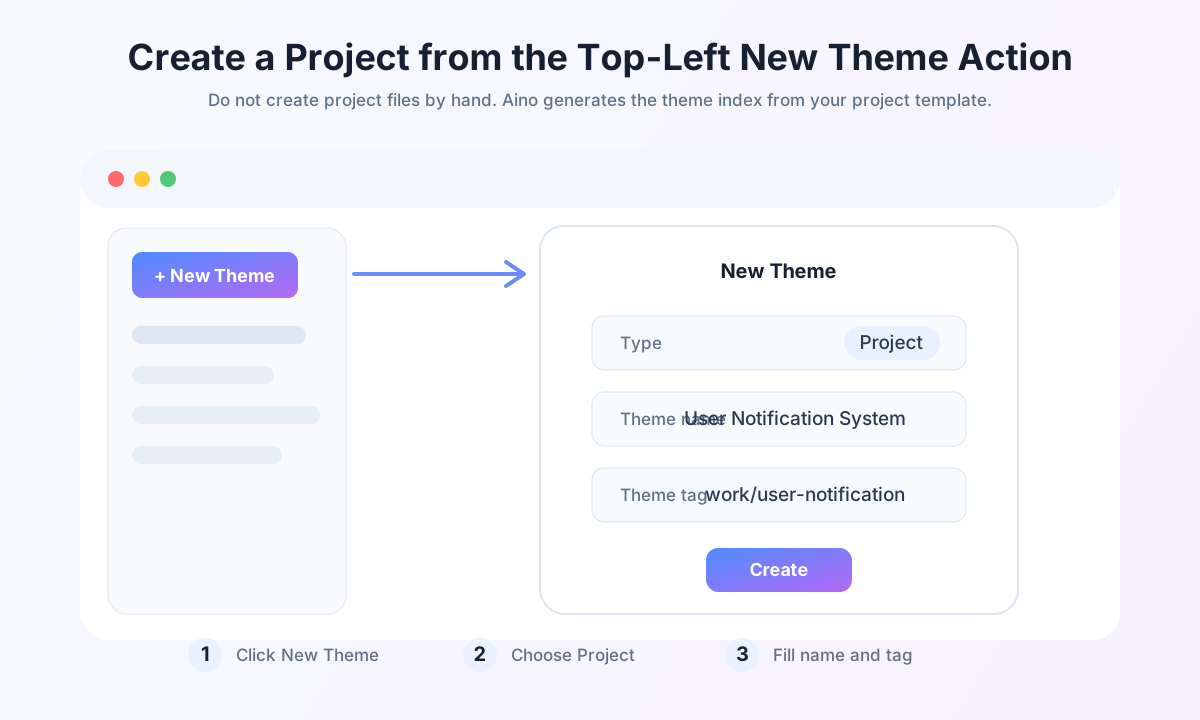
Use Aino's top-left New Theme action to create the project. Do not manually create project files:
- Click New Theme in the top-left corner
- Set the type to Project
- Enter
User Notification Systemas the theme name - Enter
work/user-notification-systemas the theme tag - Confirm. Aino creates the project folder and theme index file from the project template
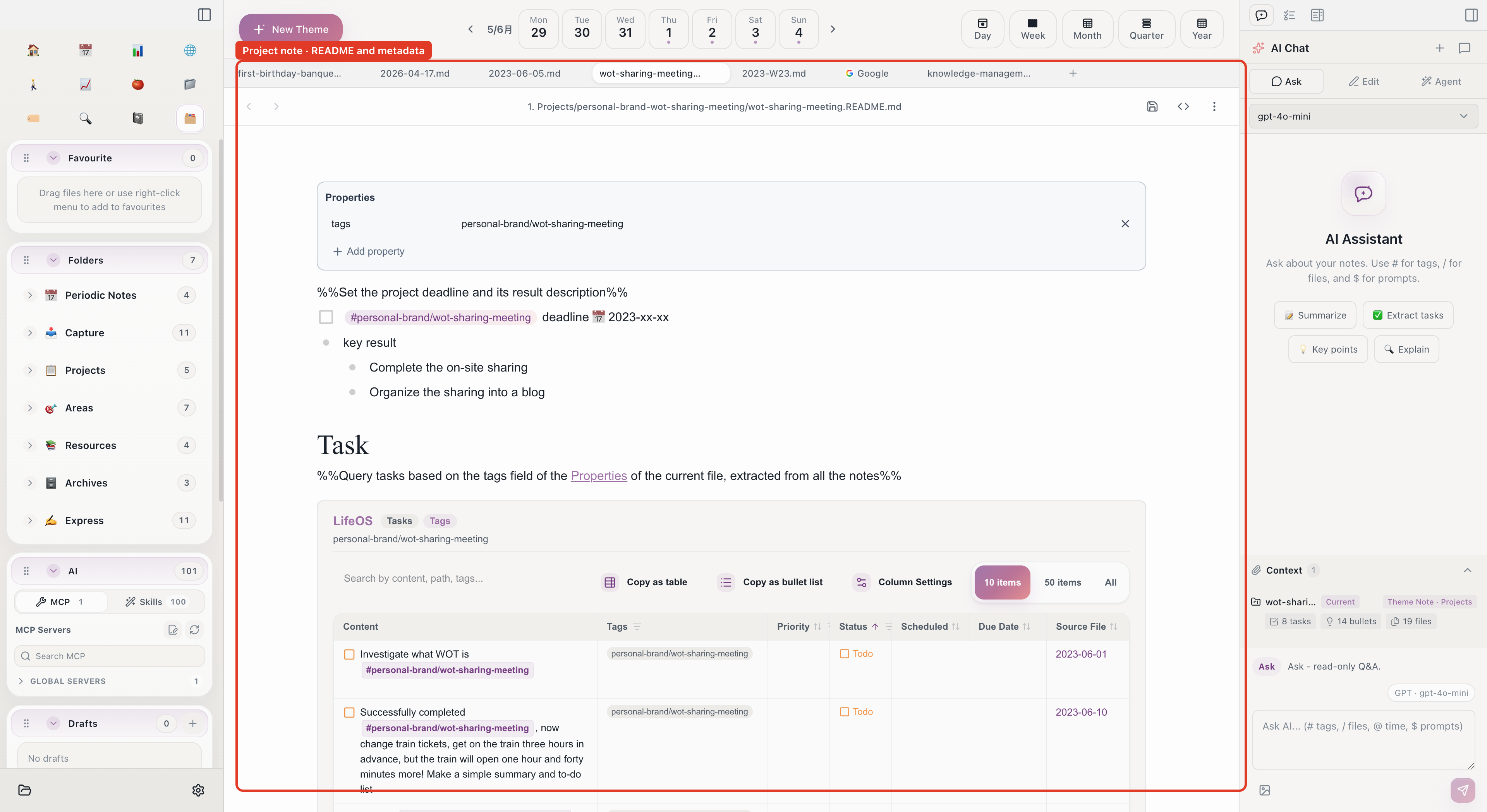
After it is created, open the generated project note and add the project goal, milestones, and related docs:
Break Down Tasks
Create Task Breakdown.md in the project folder, refining milestones into actionable tasks:
These dated tasks automatically appear in the task inbox and on the calendar on their respective dates.
Week 1: Execution
Daily Workflow
Every morning, open your daily note:
- Check today's calendar time blocks — which tasks are scheduled
- Pick one from the task inbox and start a Pomodoro
- Write technical docs in the editor
- Discuss solutions with AI Chat when stuck
Record Technical Decisions
Create decision records in the project folder:
Reference with [[Tech Decision: Notification Storage]] in the project note.
Track Progress in Daily Notes
Record project progress daily:
Weekend: Weekly Review
Open the weekly note to review Week 1:
Week 2: Sprint & Launch
Manage Deadlines with Calendar
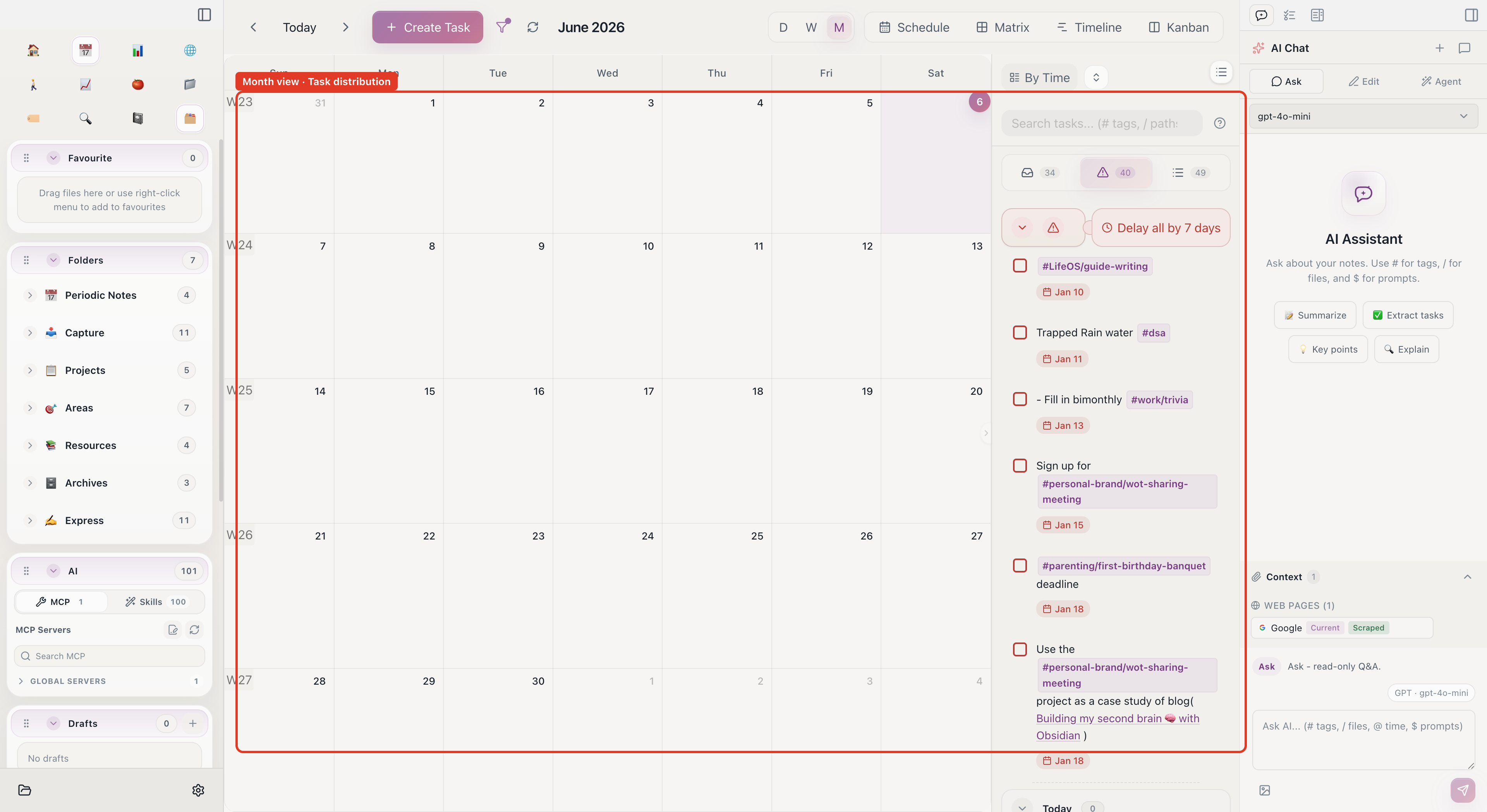
View all task deadlines in the calendar month view to ensure nothing is missed.
If a day is overloaded, drag tasks to other dates to redistribute.
Four-Quadrant Prioritization
Switch to the calendar's four-quadrant view to prioritize by urgency/importance:
- Urgent + Important: Fix test-blocking bugs
- Important + Not Urgent: Improve error handling
- Urgent + Not Important: Reply to design feedback
- Not Urgent + Not Important: Code style improvements
Project Complete: Archive
After successful launch:
- Update the project note status to "Complete"
- Record the launch confirmation in your daily note
- Move the entire
1-Projects/User-Notification-System/folder to4-Archive/2024-Notification-System/ - The project disappears from the home view, but all docs and decisions are preserved
Project Management Feature Map
The core of project management is "tasks visible, progress trackable." Give the project a space with PARA, give tasks time with the calendar, record daily progress in daily notes, and review periodically in weekly notes — this fits personal work rhythms better than any project management tool.
Start with Aino
Turn this approach into your everyday workflow
Try Aino Desktop Pro free for 7 days, open an existing Markdown vault, or start with the complete example vault from your email.
- 7-day free trial
- Portable Markdown
- Complete example vault by email